Insert an image or logo on the canvas
Boxes and labels group a topology; an image brands it. Drop a company logo, a network diagram, a legend or a floor plan straight onto the canvas as an annotation. netplex. ships 3,467 brand icons built in - vendor logos, cloud marks, protocol badges - so most of the time you do not even need a file.
Open + Add → Insert image… (or the image tool in the draw toolbar). Two ways in: Insert Logo searches the built-in brand-icon library, and Upload Image takes a file from your machine (drag-drop or picker) as a data-URL annotation.
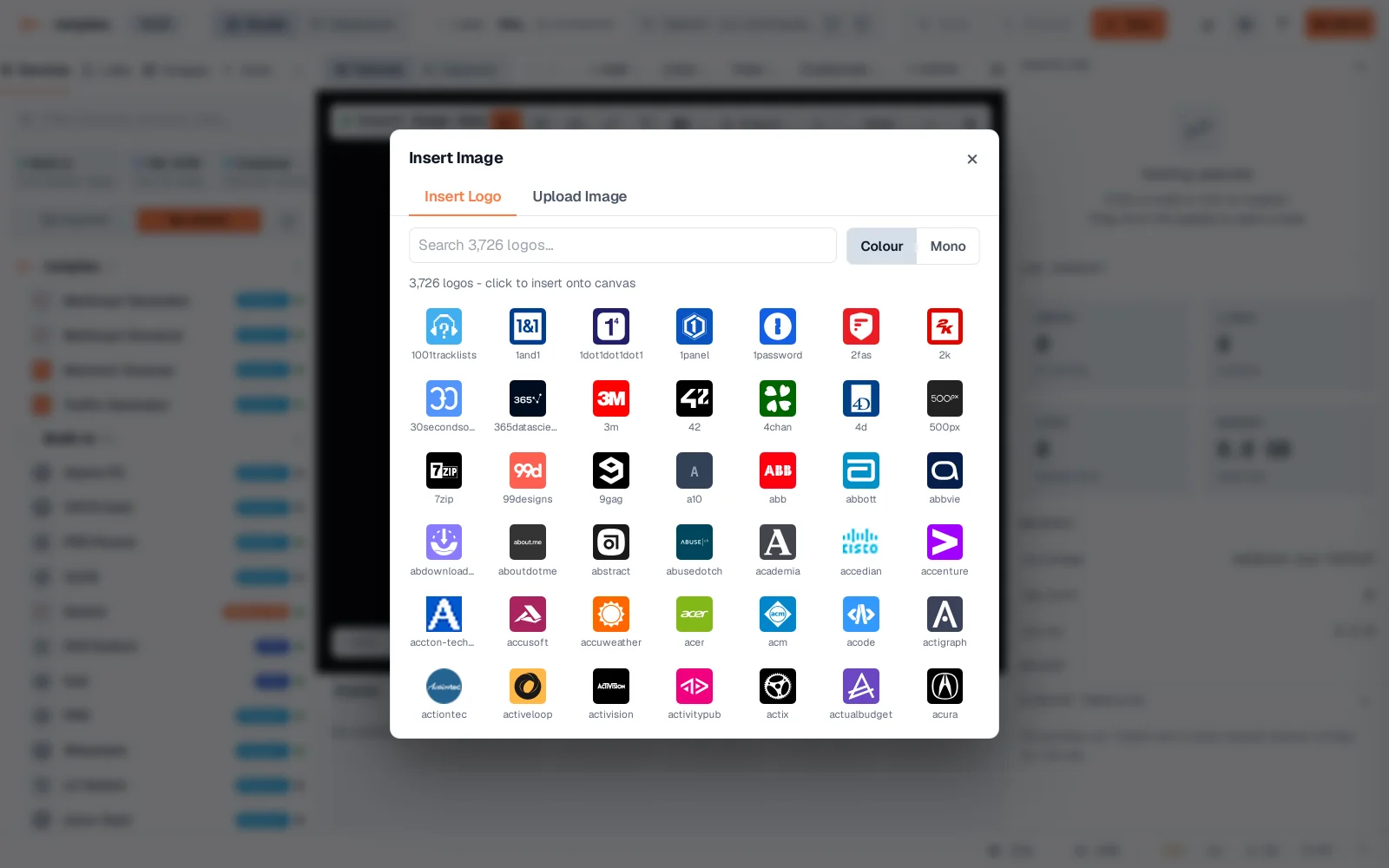
On Insert Logo, type a name - here a cloud vendor - and click a result. It lands on the canvas as an image annotation you can drag, resize from its corners, and send behind your nodes. No upload, no external request.
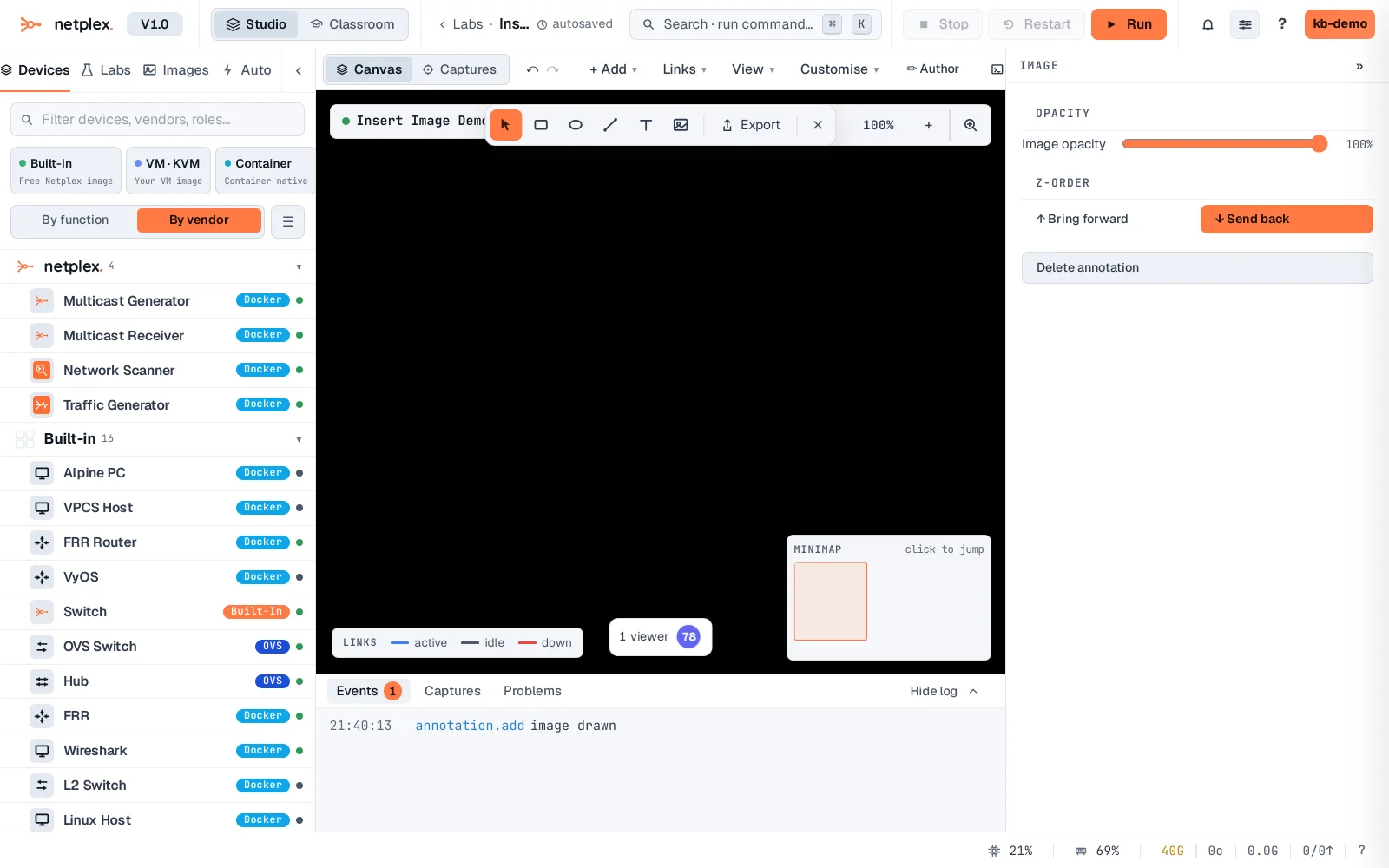
Right-click the image to style it (opacity, bring to front/back) or delete it. For a lab-wide backdrop - a rack diagram or a campus map behind everything - use permanent background in Settings; the image then anchors the whole canvas instead of floating as one annotation.
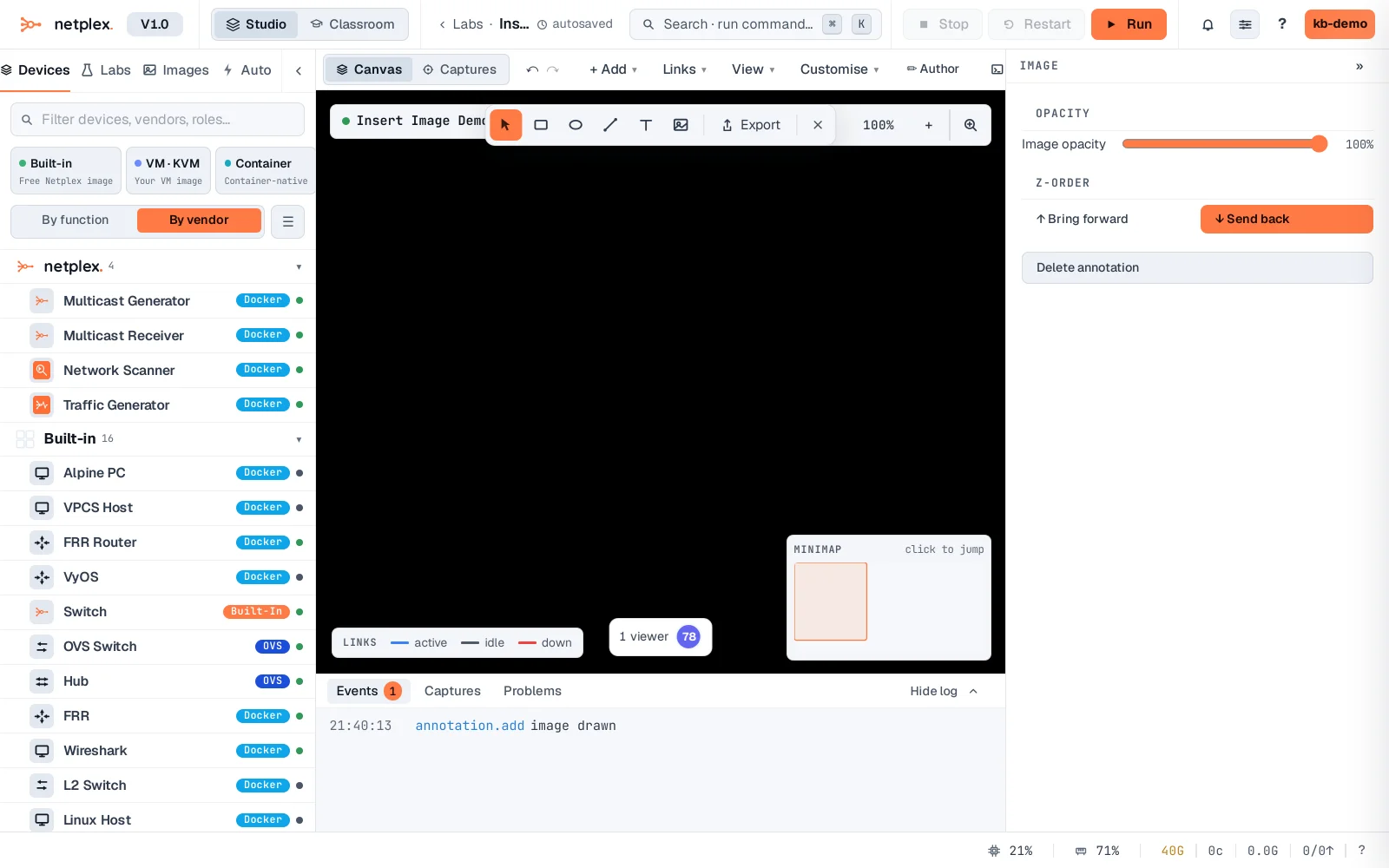
Image annotations are part of the lab - they export with the topology PNG and travel in the .npx file, so a shared lab keeps its branding and legends. Combine logos with boxes and text labels to turn a working topology into a diagram that explains itself.