Style individual nodes and links
Beyond the global theme, any single node or link can be restyled on its own - a red firewall, a thick backbone link, a dashed out-of-band path. These per-element overrides win over the lab and global appearance for that one element, and travel with the lab.
Right-click a node for its menu, then choose Appearance. The popover carries colour, shell shape, icon style and size - everything about how this one device looks.
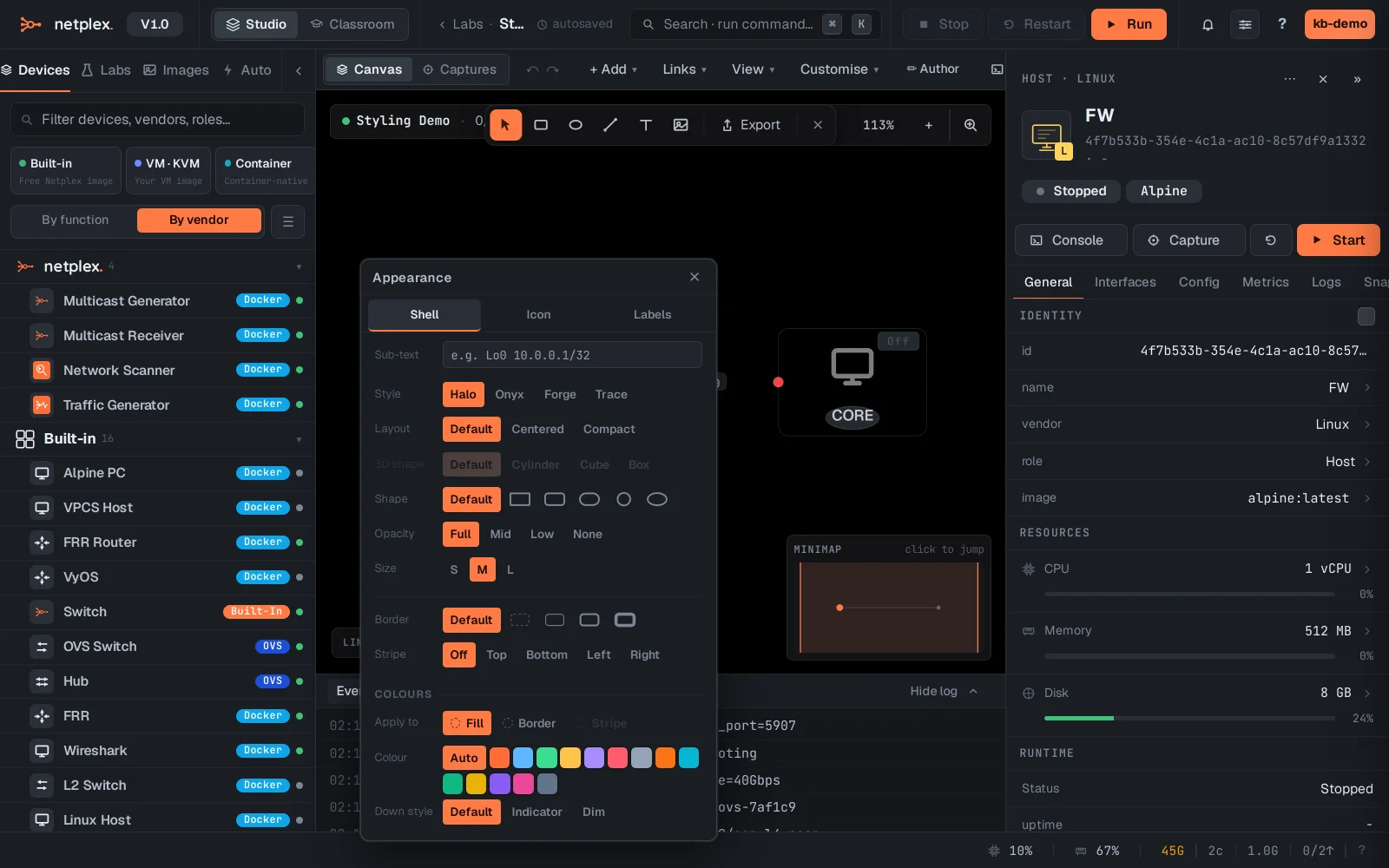
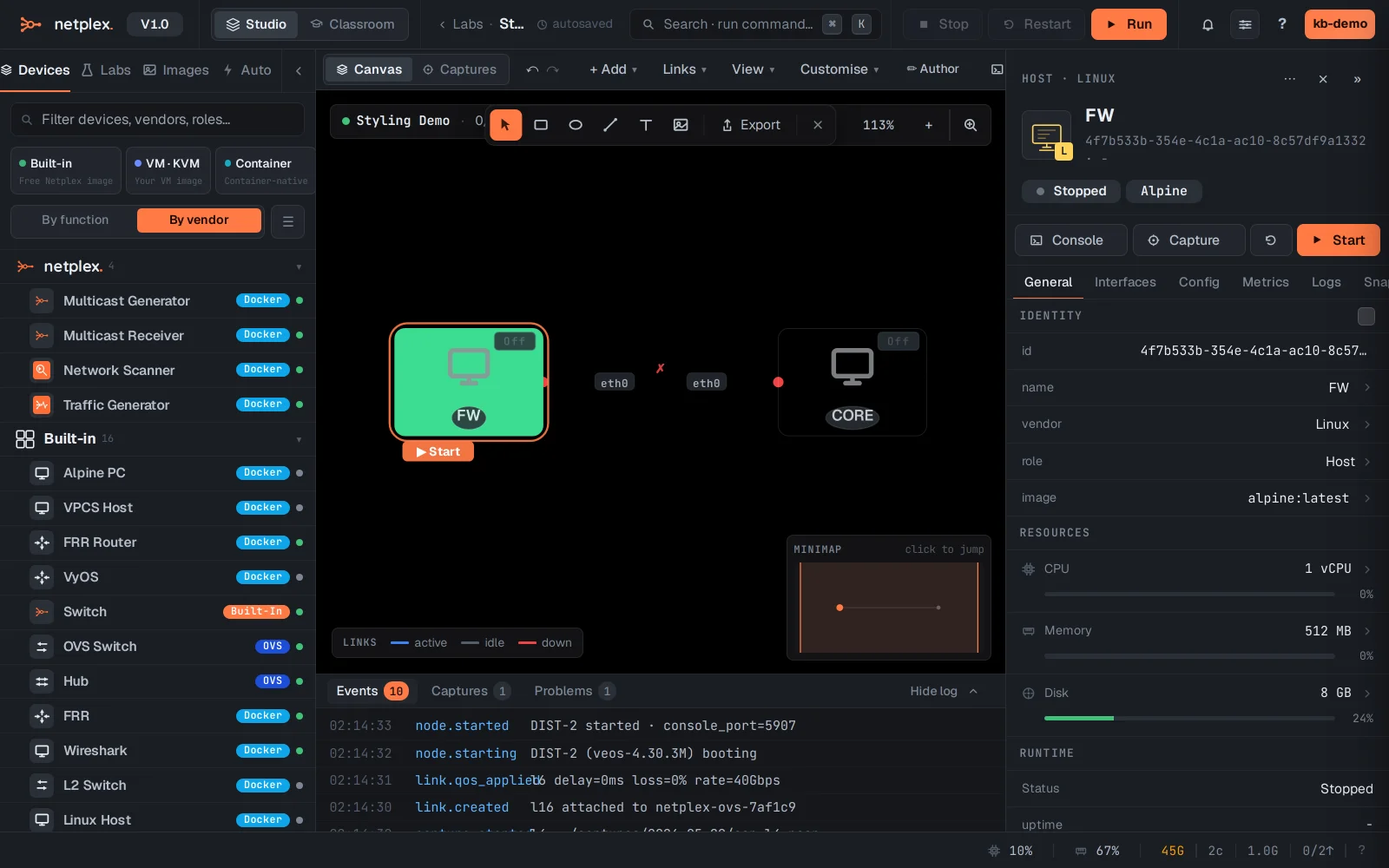
Pick a colour and the node updates on the canvas immediately. Use it to make roles obvious at a glance - firewalls red, servers blue - without touching any other device.
Links work the same way: right-click a link and the Appearance tab holds its path style (curve, arc, ortho, line), thickness and colour - thicken a backbone, dash a backup path.
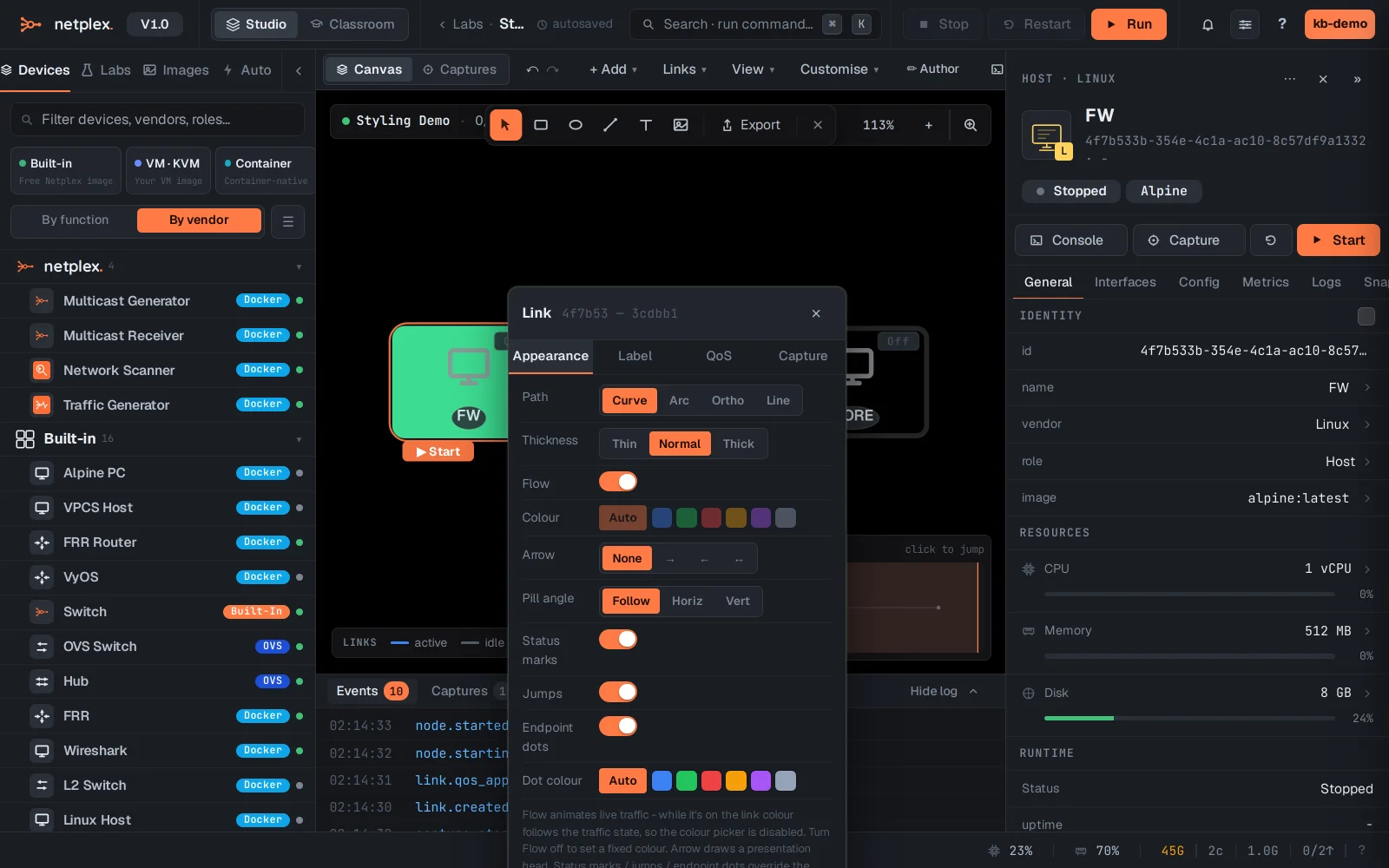
To undo, the node menu has Reset appearance (back to inherited), and the link popover's controls have an auto/default option. Per-element styling is the top tier of the appearance chain - see the inheritance guide for how global, lab and per-element layer together.