Start and stop nodes
Run in the top bar starts the whole lab; each node can also be started and stopped individually. A running node gets a green dot, live metrics, logs and a console.
A freshly built lab is powered off - nodes show the Off pill. Click Run in the top bar to start everything.
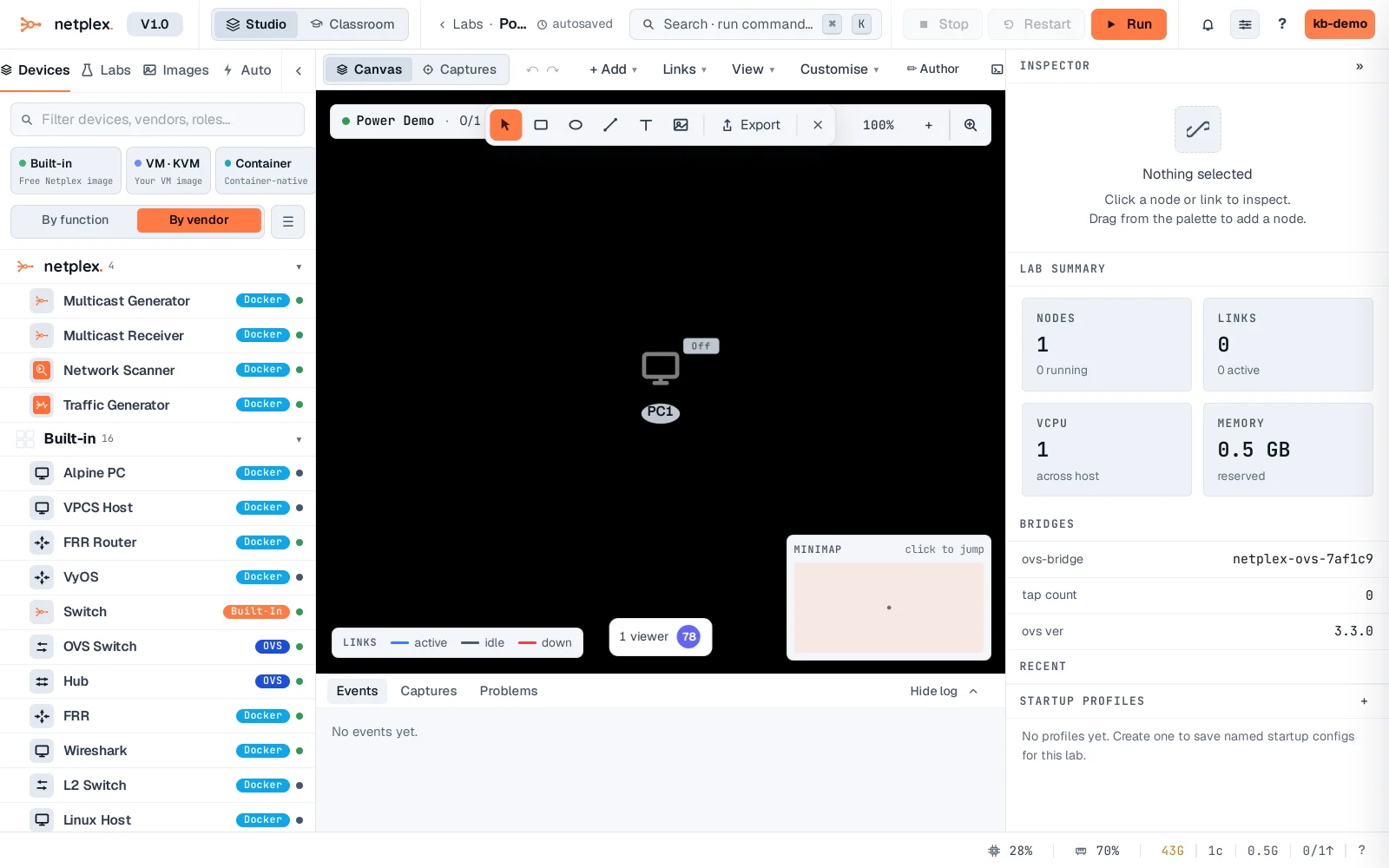
Starting takes seconds for containers (longer for VM images while they boot). The node turns green when its runtime is up; the top bar flips to Running with Stop/Restart controls.
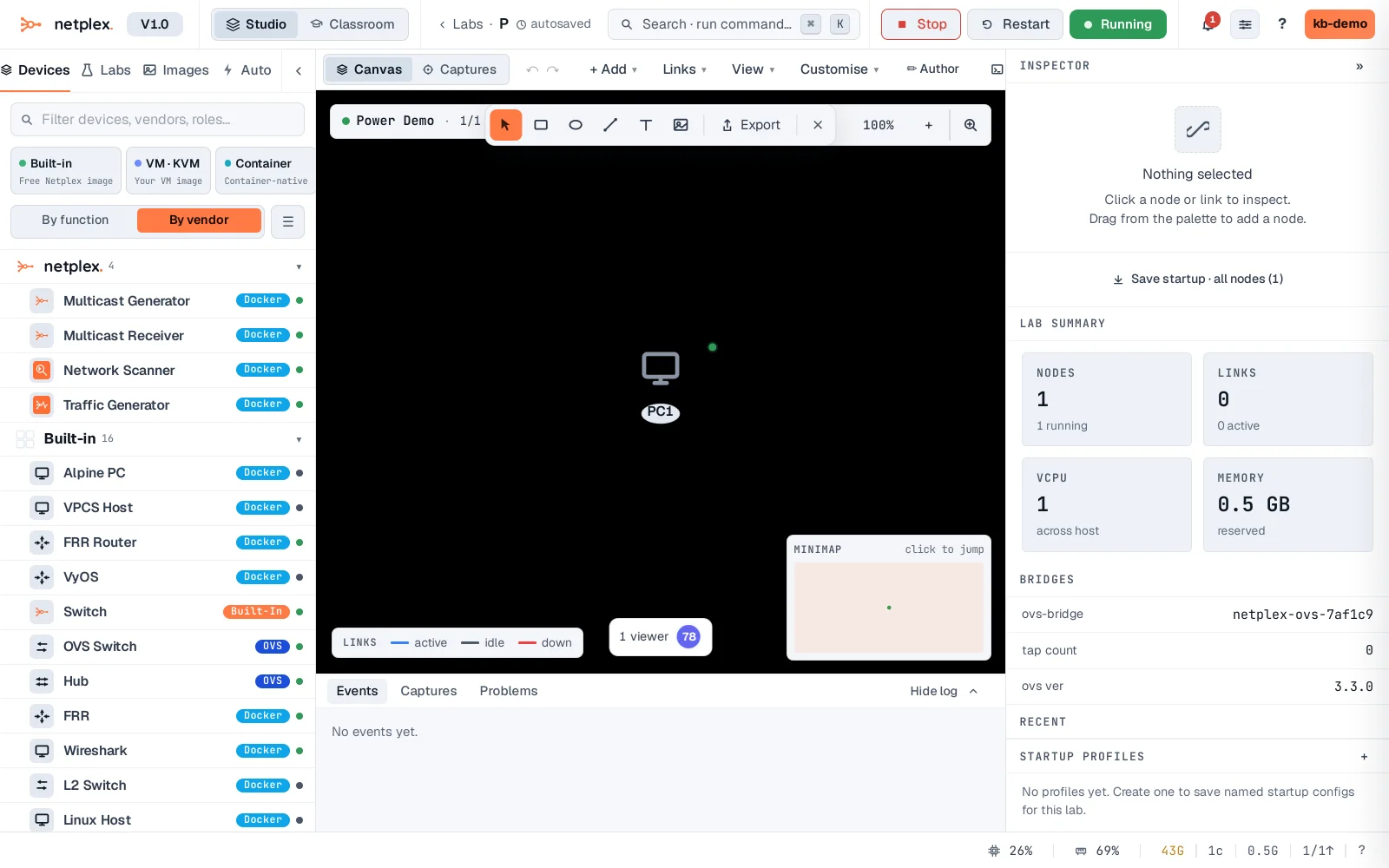
Stop the lab (or one node) the same way - Stop shuts nodes down cleanly and releases their CPU and RAM. State on disk persists: start again and the node is exactly where you left it.
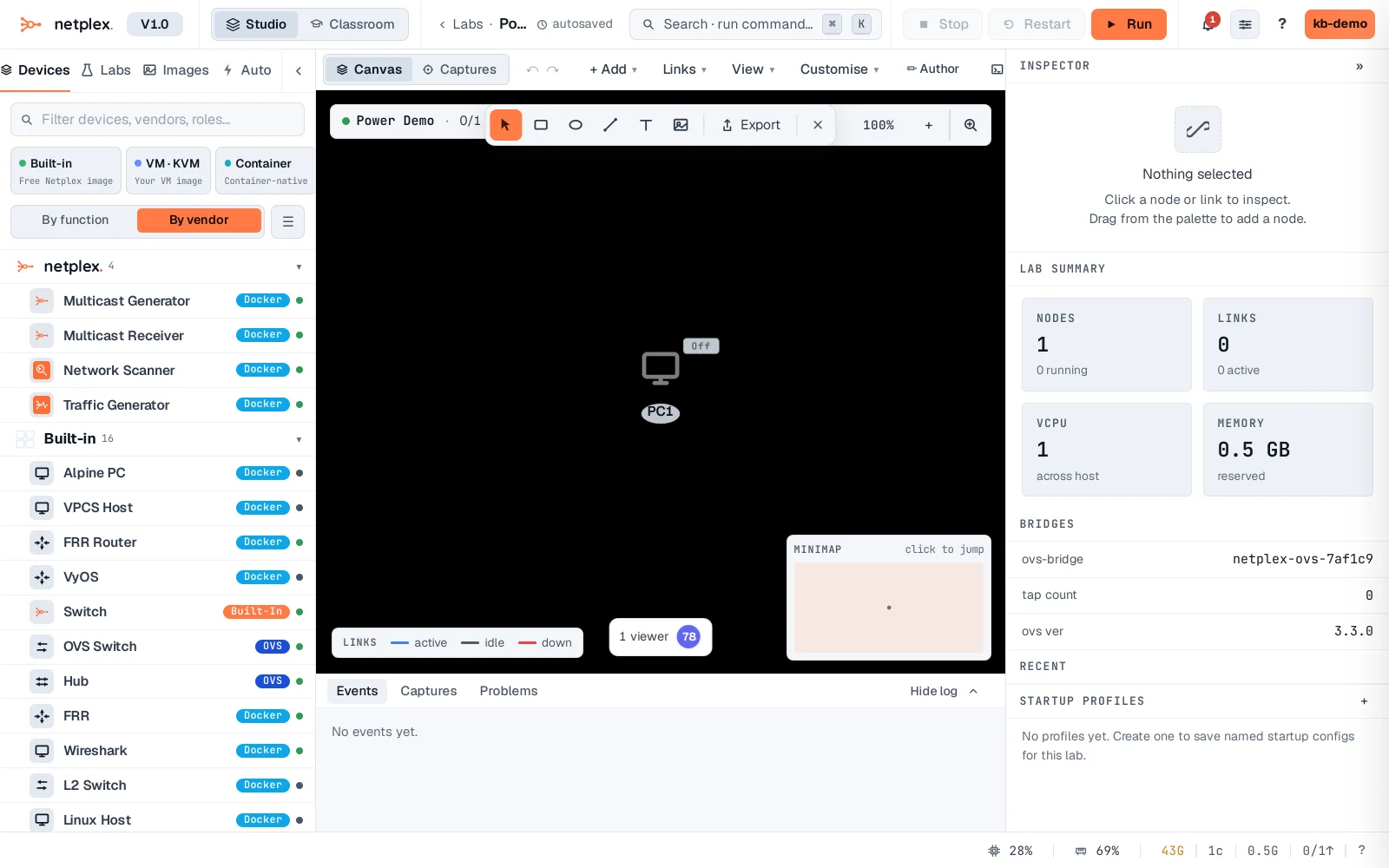
Individual node control lives on the node's right-click menu and in the Inspector. Restart is stop+start in one step - handy after changing a node's hardware settings.