Dashboard appearance: style the platform shell
There are two appearance surfaces in netplex., and they do different jobs. Lab Appearance styles the canvas - themes, node and link looks, terminal colours. Dashboard Appearance styles the shell around it: the navigation, the panels, and platform-wide options like high contrast. This guide covers the shell.
Open Settings and pick the Dashboard tab. This controls the chrome you see on every page - the left navigation and the surrounding panels - separately from anything inside a lab. Changes preview live and are saved to your account, so they follow you to any browser.
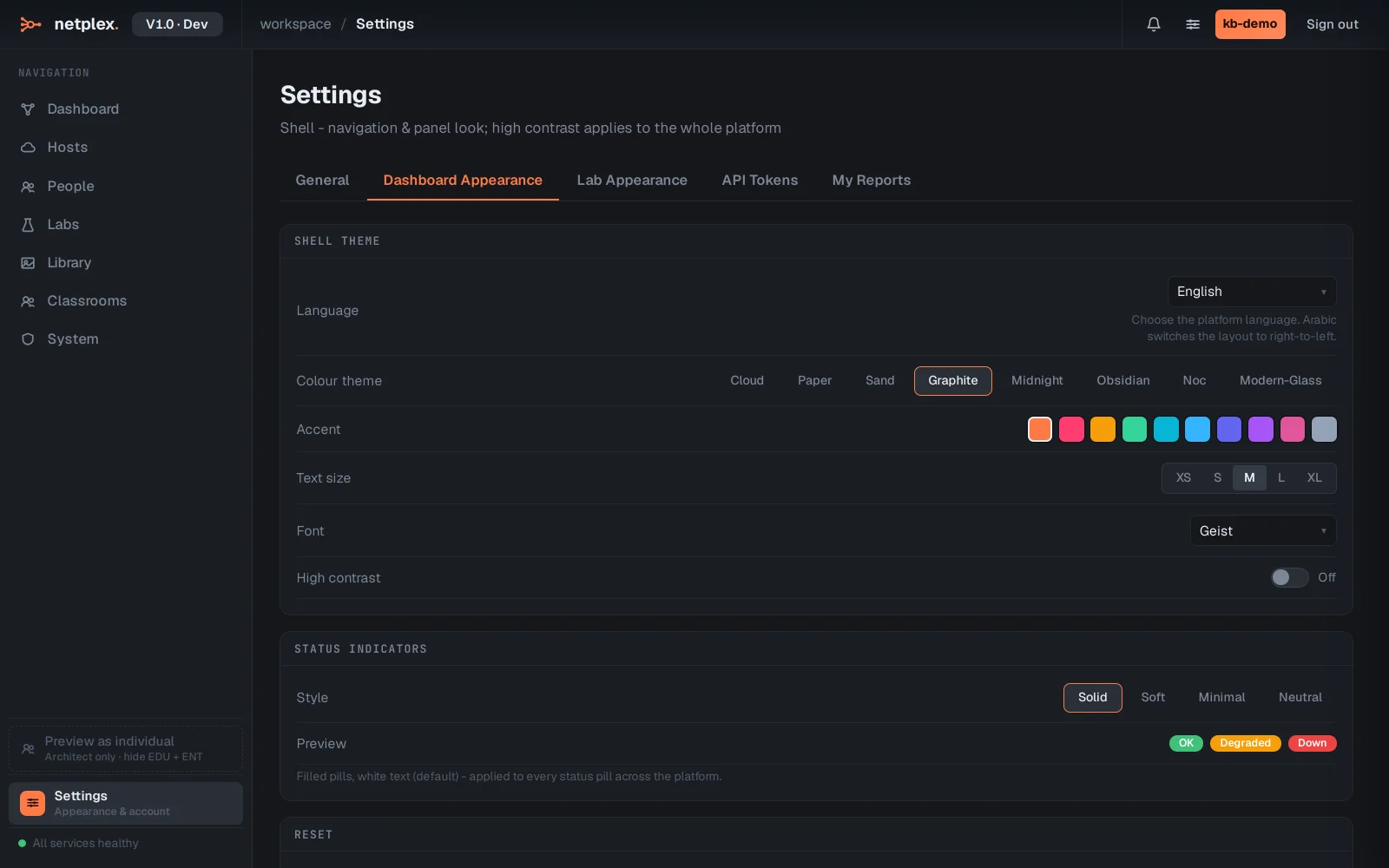
The key platform-wide switch here is high contrast - it applies to the whole interface at once, not just one lab, for readability on projectors or in bright rooms. The rest tunes navigation density and panel styling to your taste; nothing here touches a lab's canvas or a device's terminal.
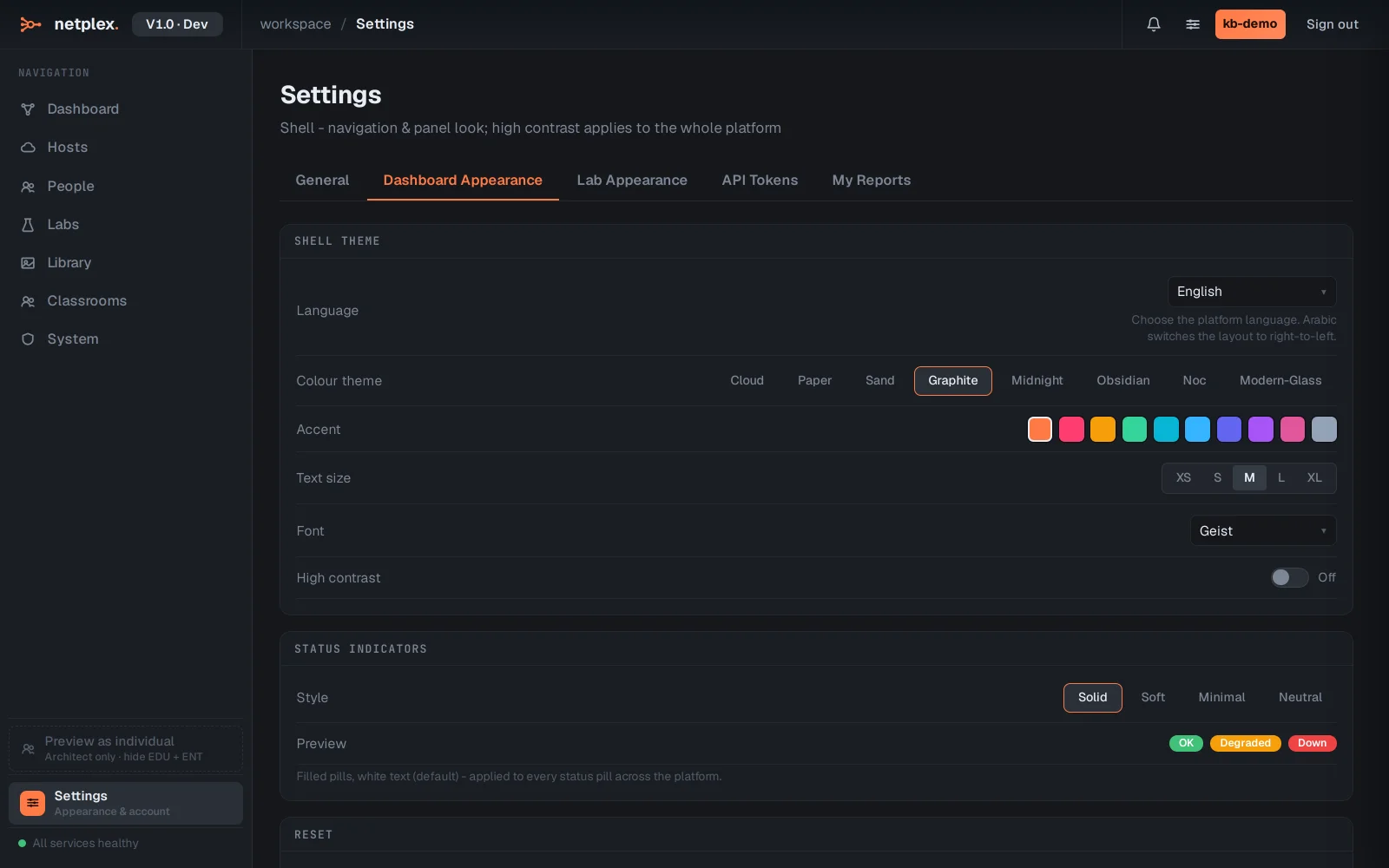
Two surfaces, one rule of thumb: shell chrome lives in Dashboard Appearance, everything inside a lab lives in Lab Appearance. For how a lab inherits and overrides those defaults, see "How appearance inheritance works"; for full themes and terminal colours, see "Themes and terminal colours".