Themes and terminal colours
netplex. ships several full themes - dark, light, and in-between - and lets you tune the canvas, links and terminal to taste. It all lives under Settings -> Lab Appearance, with a live preview so you see a change before you commit to it.
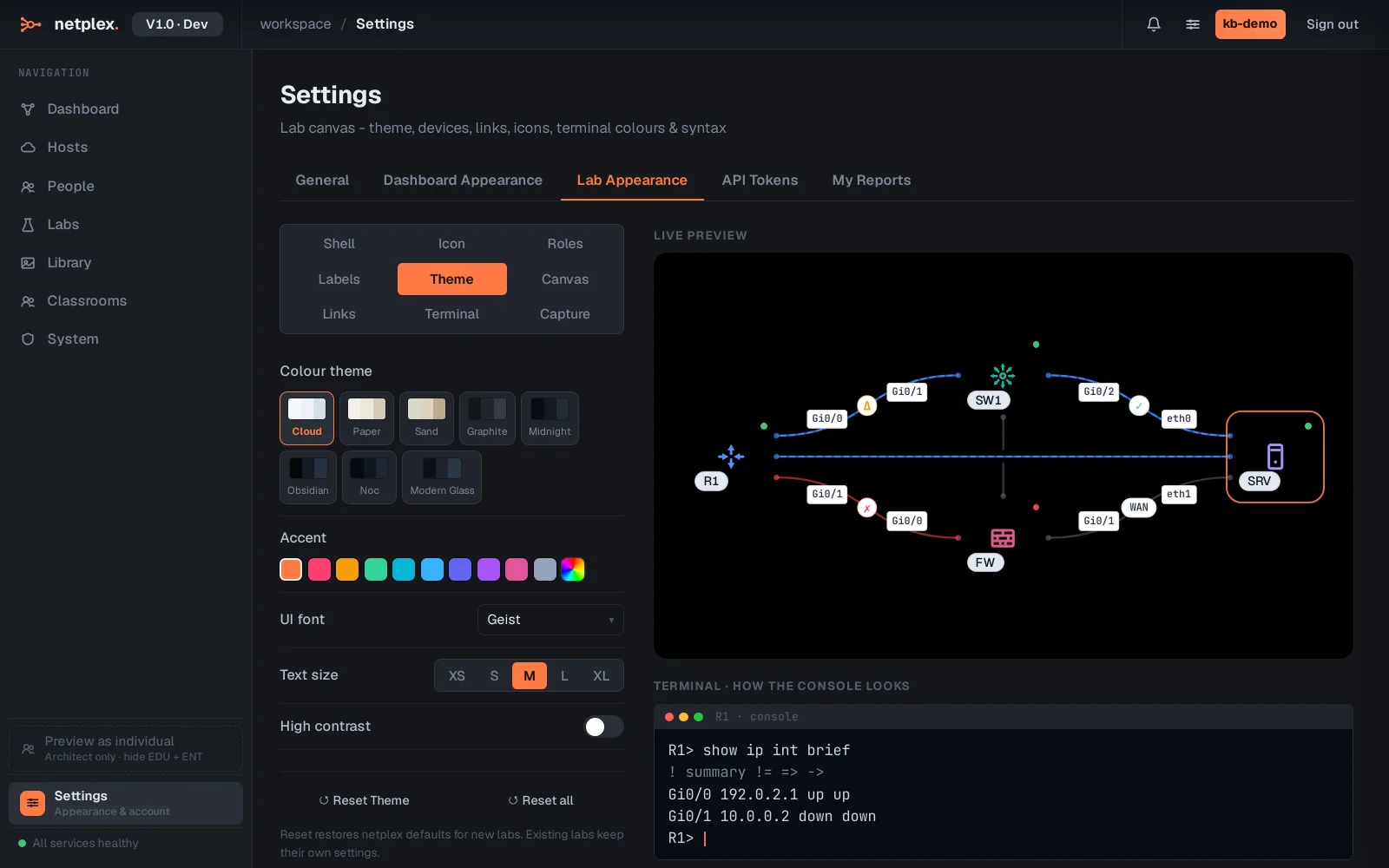
Open Settings -> Lab Appearance and pick the Theme tab. The swatches are complete themes - Cloud, Paper, Sand, Graphite, Midnight, Obsidian and more. Click one and the whole UI, plus the live preview, recolours instantly.
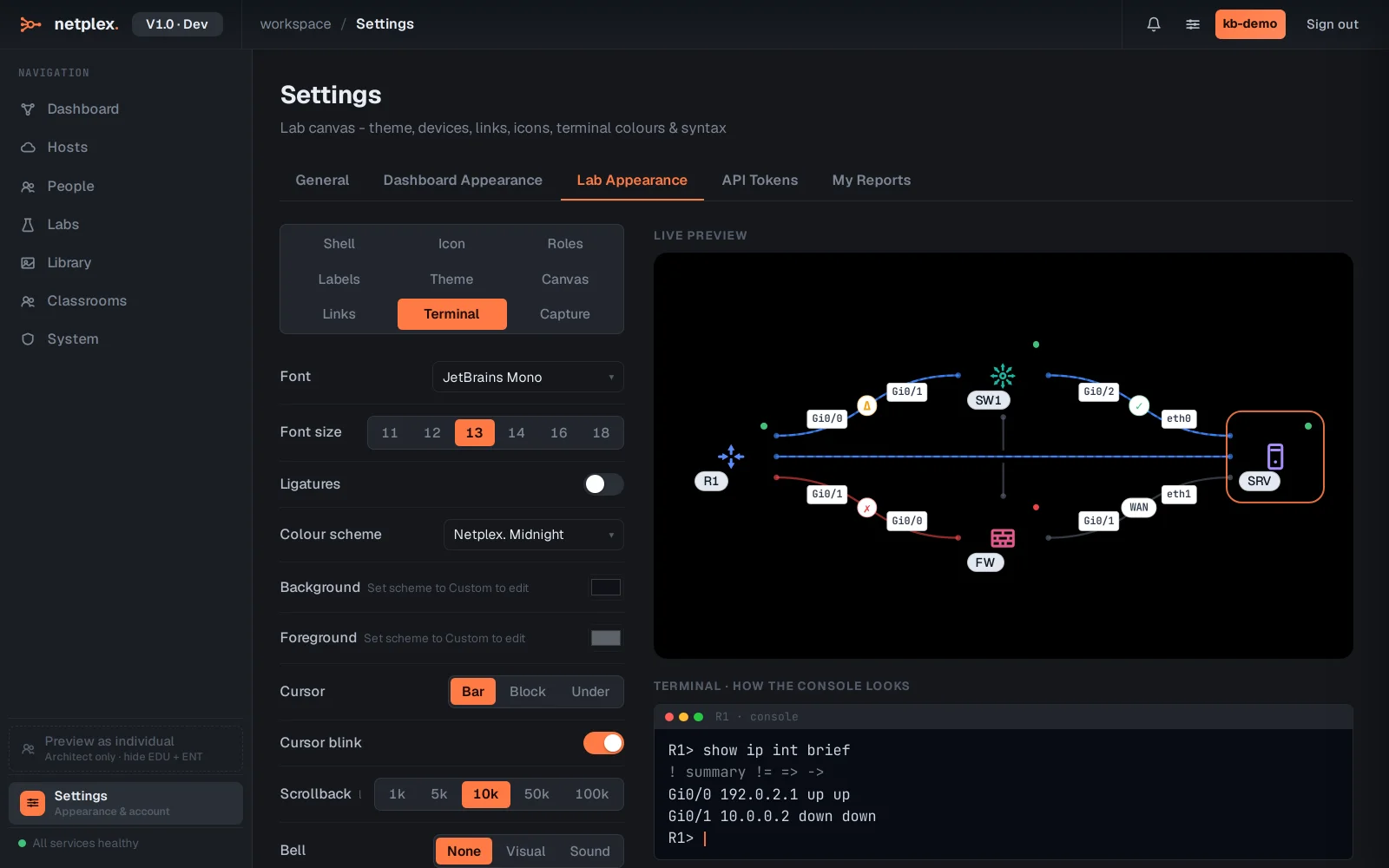
The Terminal tab styles the built-in consoles - colour scheme, font and size - so your shells match your theme. The preview becomes a live terminal strip while this tab is open.
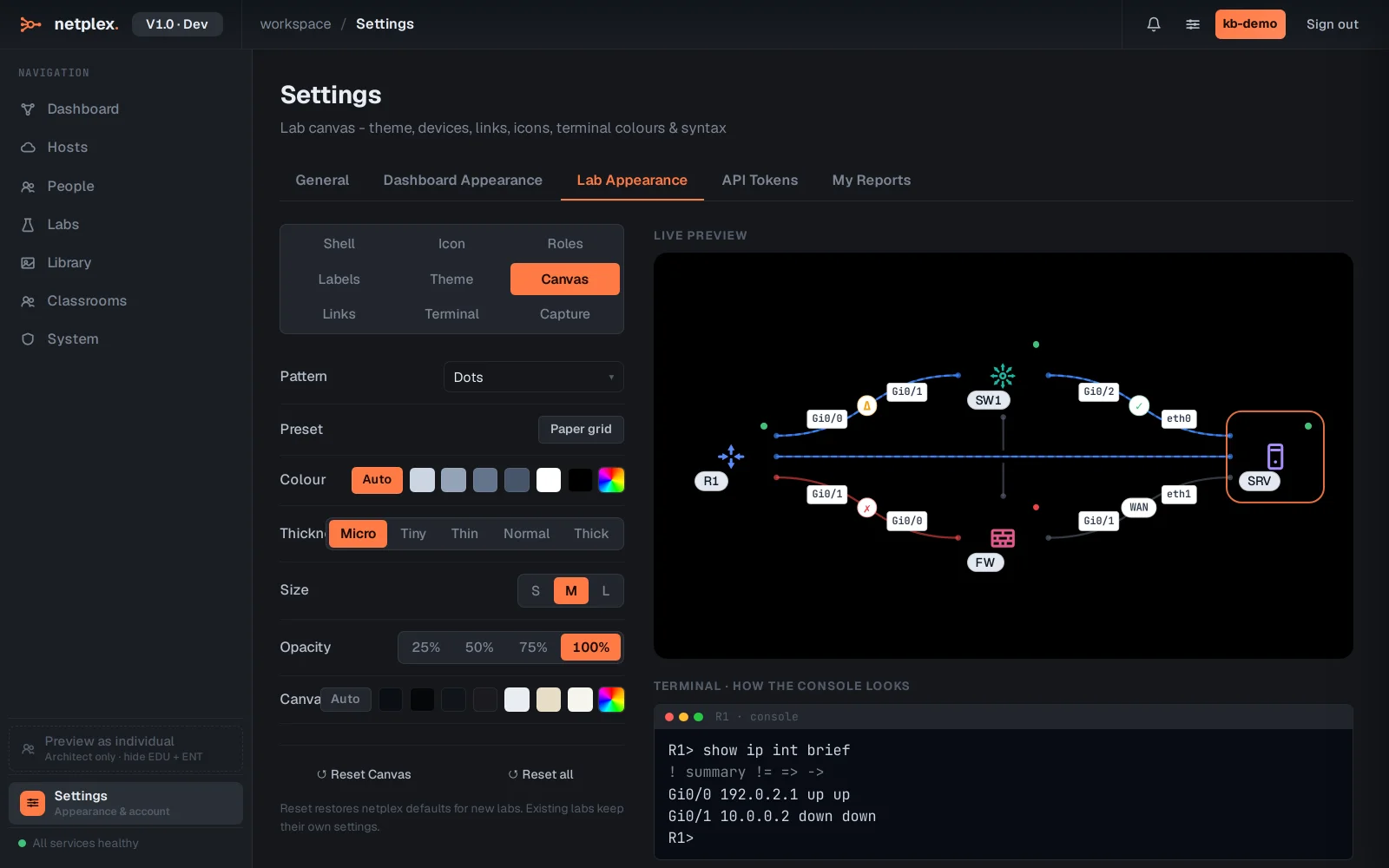
The other tabs - Canvas, Links, Icon, Shell - tune the topology itself: background, link style, device icon set and node shells. Everything set here is your global default; a single lab can override any of it (see the inheritance guide).
Six-plus themes, from high-contrast dark for a NOC wall to Paper for print, plus per-lab and per-element overrides on top. Set it once globally and it follows you to any browser via your account.