How appearance inheritance works
Appearance has two tiers. Settings → Lab Appearance is the global default - every lab starts from it. Inside a lab, Customise → Appearance can override any single item for that lab only, without touching the rest.
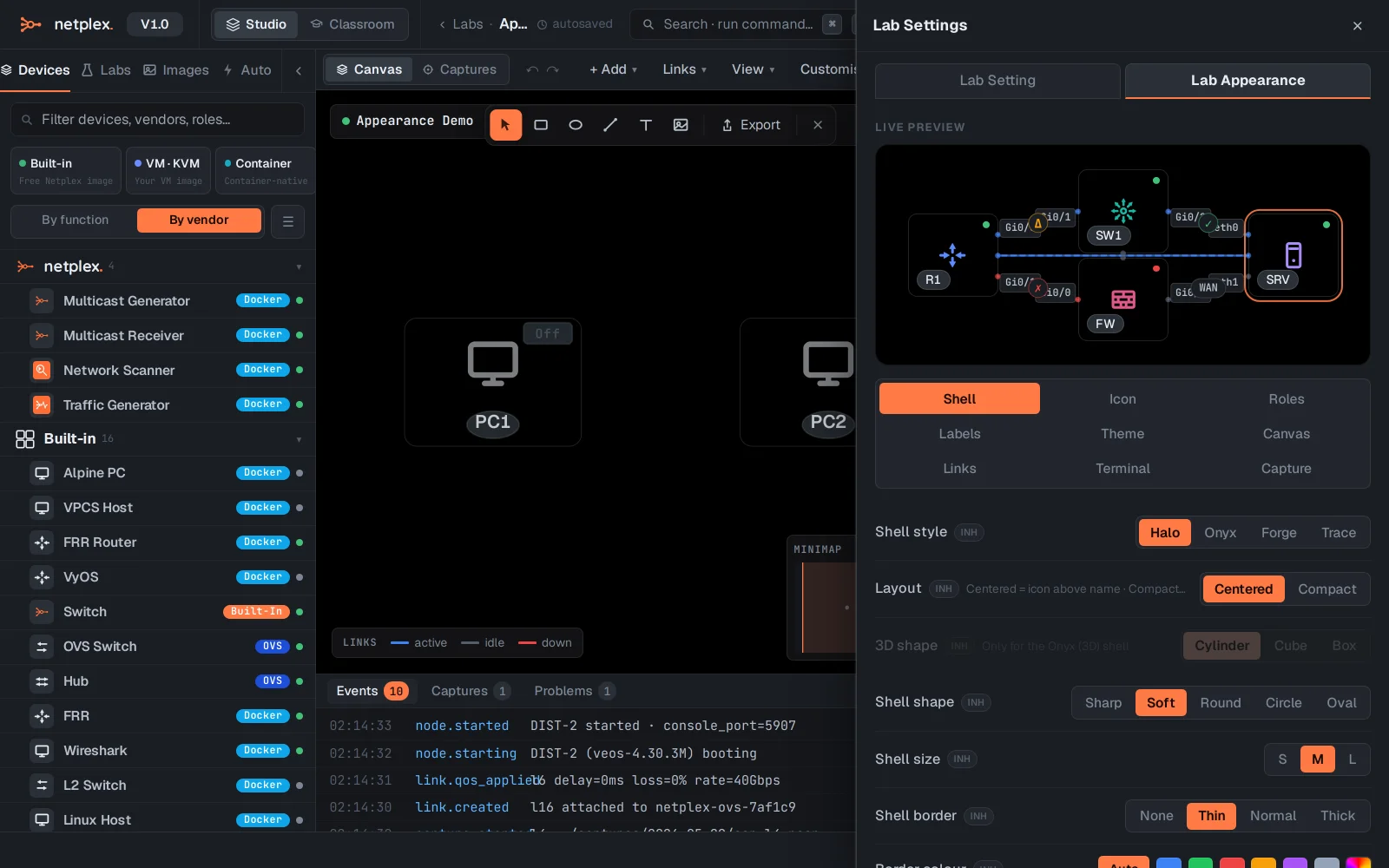
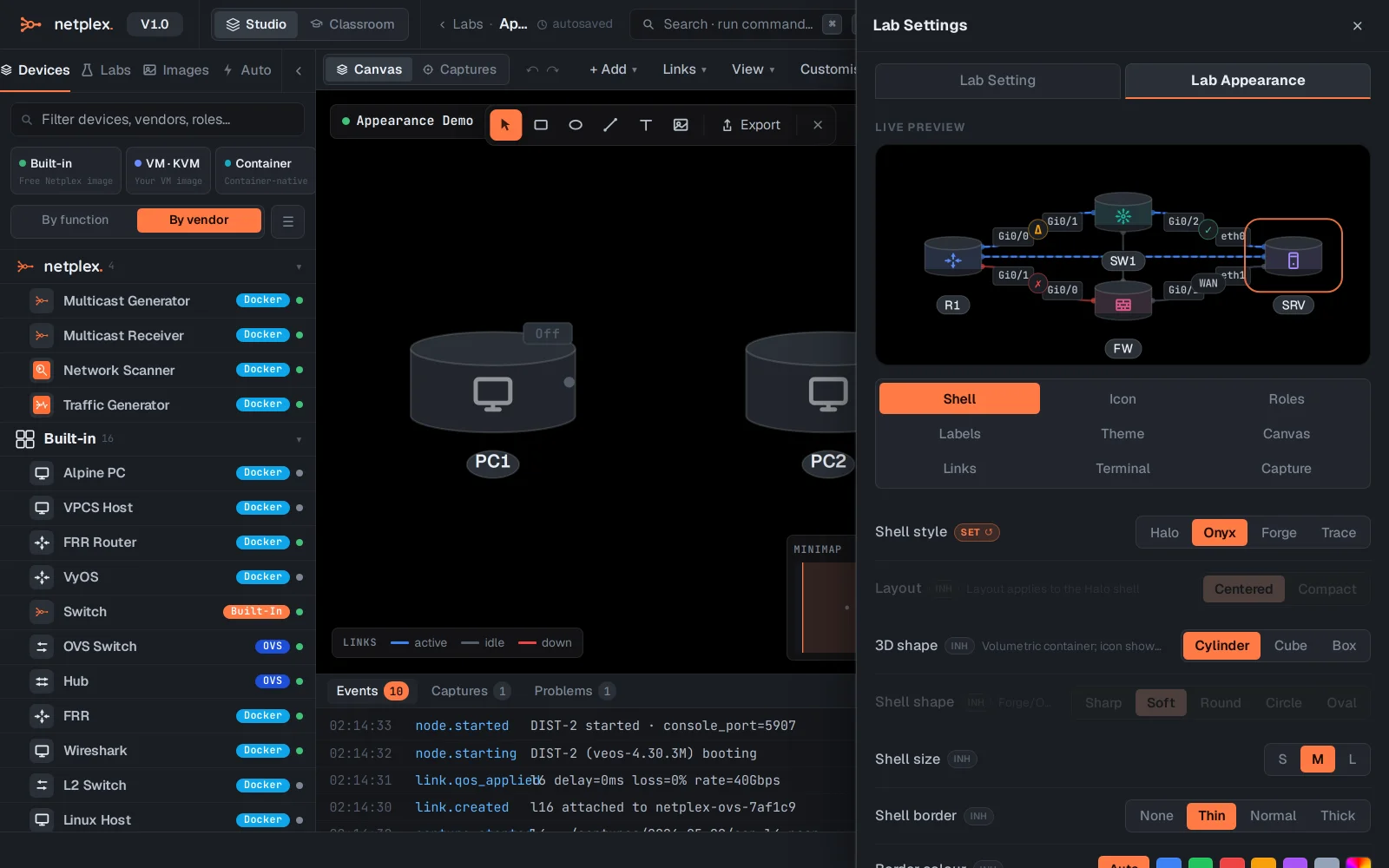
Each row in the lab panel carries a chip that tells you where its value comes from: INH means inherited from the global default (change the global and this lab follows), SET ↺ means overridden in this lab (click the chip to drop the override and fall back to inherited).
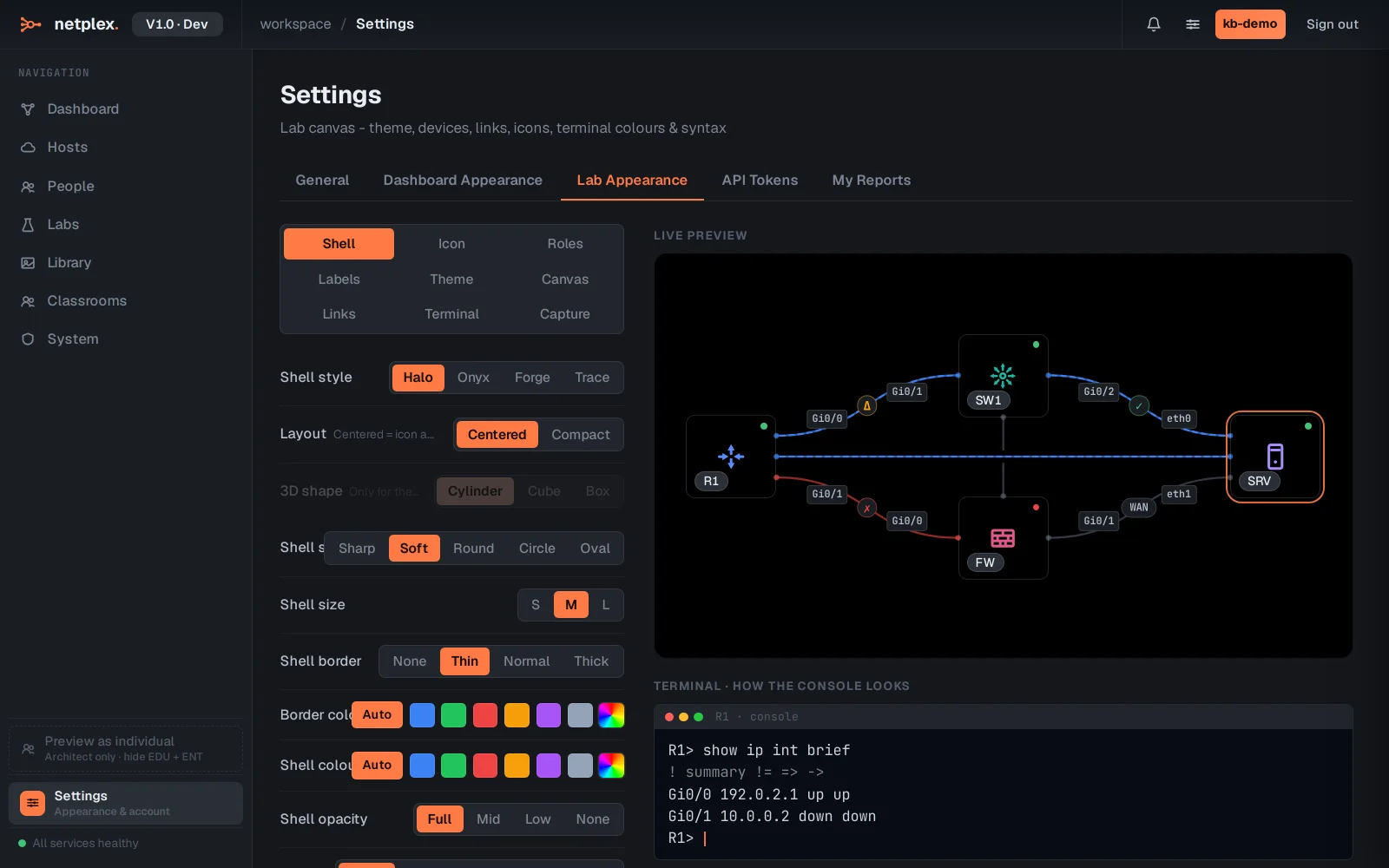
The global tier: Settings → Lab Appearance. Whatever you pick here - theme, accent, icon style, link style - becomes the default for every lab that has not overridden it.
The per-lab tier: open a lab, then Customise → Appearance. Rows show the INH chip - this lab inherits everything from the global default right now.
Change anything in the lab panel - here a different Shell style for just this lab - and its row flips to SET ↺: this lab now keeps its own value even if the global default changes.
Click the SET ↺ chip to remove the override - the row returns to INH and follows the global default again. Nothing else in the lab is touched.
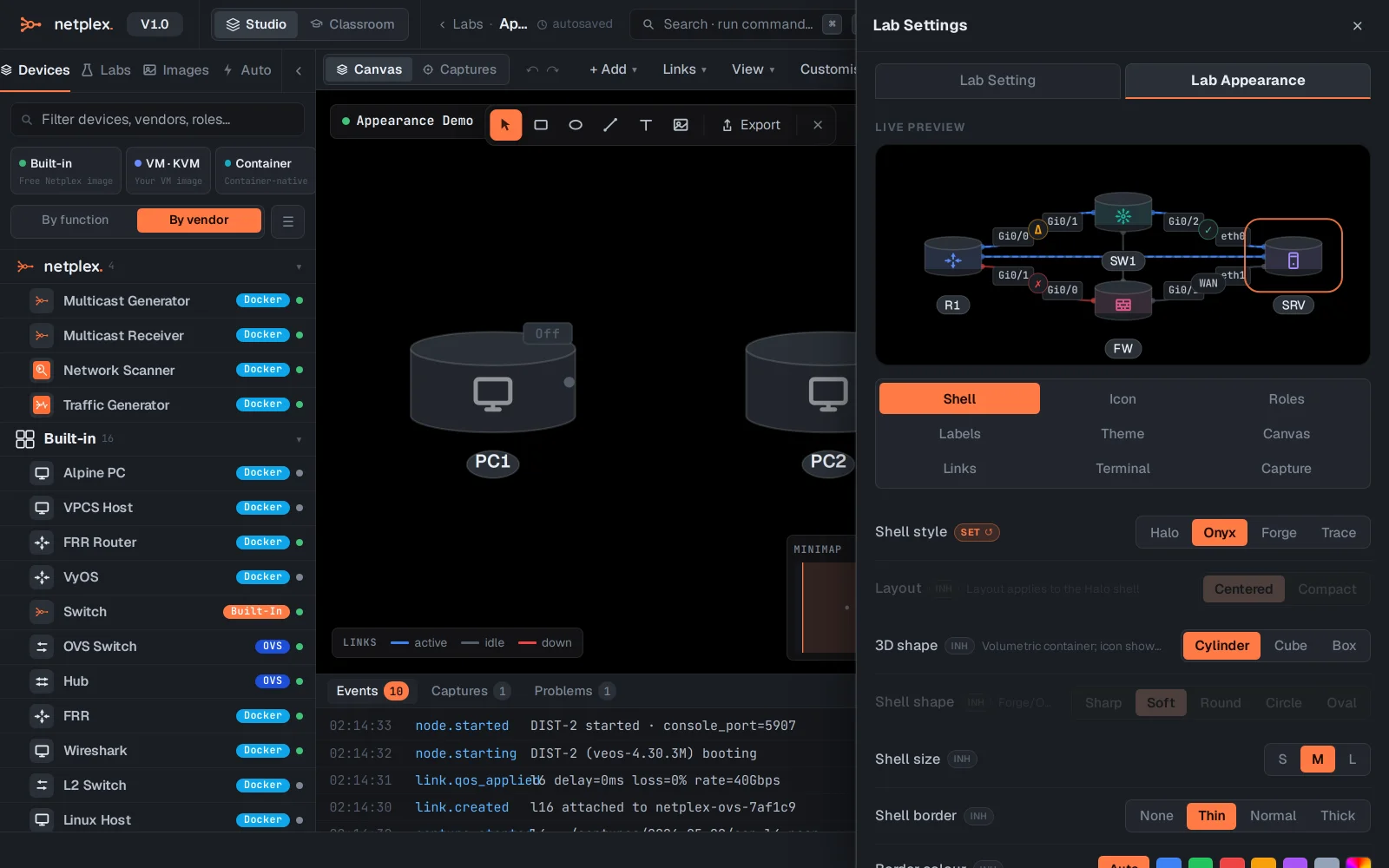
The same chain applies to every appearance item independently - you can inherit the theme globally while overriding just the link style in one lab. Per-node and per-link appearance (right-click a node or link) sits on top of this and wins over both tiers for that one element.