Capture packets on a link
Every link in a running lab can be tapped. The capture runs on the real wire - what you see is exactly what crossed the link, byte for byte, and netplex. injects no traffic of its own.
This guide captures ping traffic between two Linux PCs and views it live in the browser.
Start the lab and wait for both nodes to run. The link between PC1 and PC2 is live.
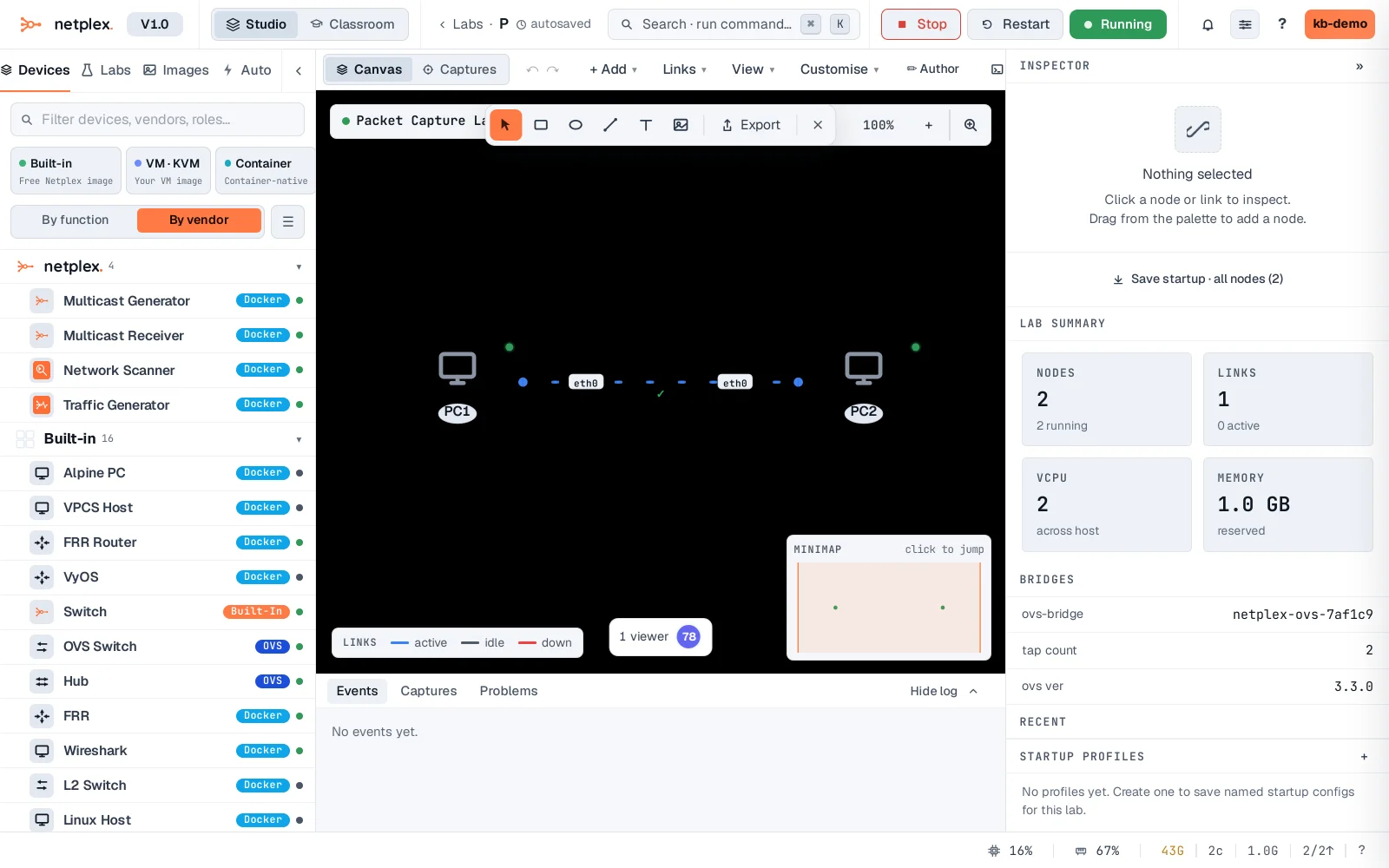
Right-click the link and open its Capture tab. You can capture everything, or only a protocol of interest (ICMP, TCP, UDP, HTTP/S, BGP).
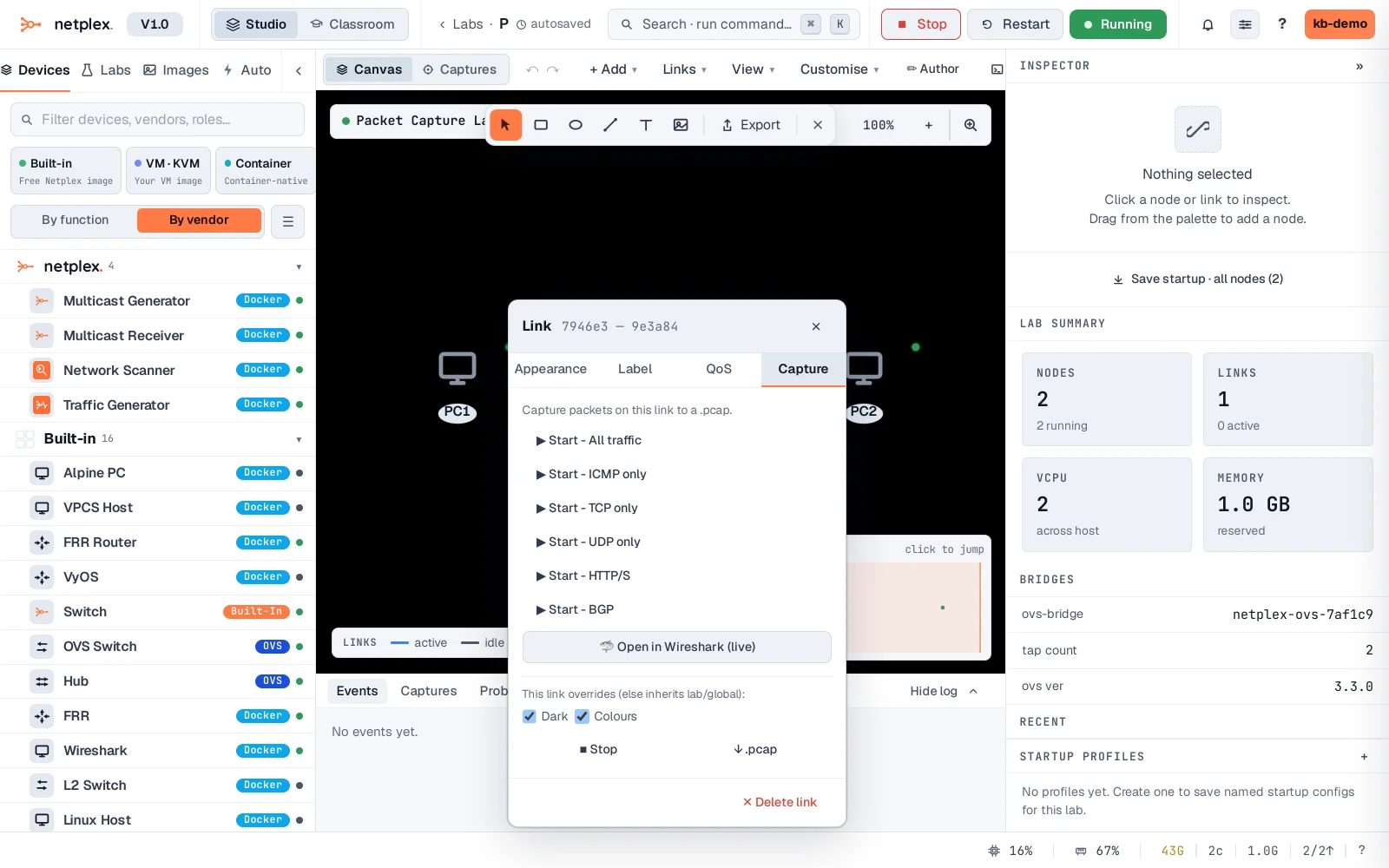
Click Start - All traffic. The live capture viewer opens in the console dock and waits for packets.
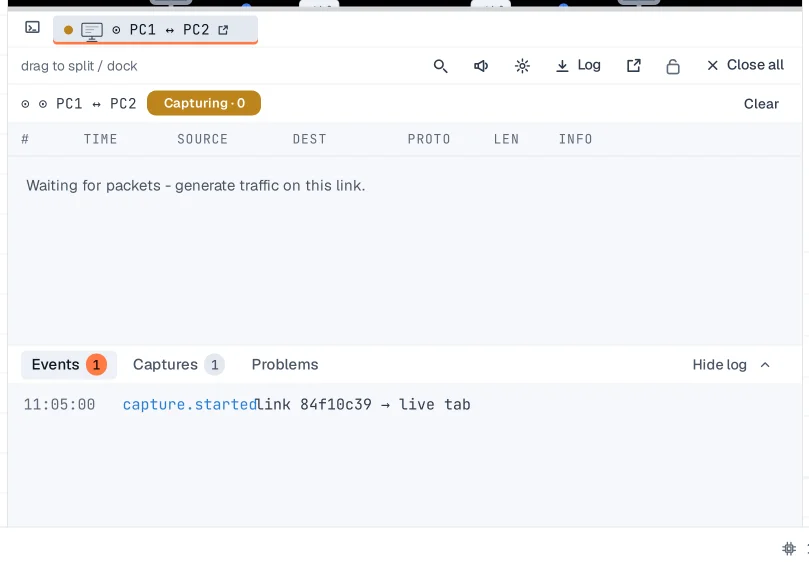
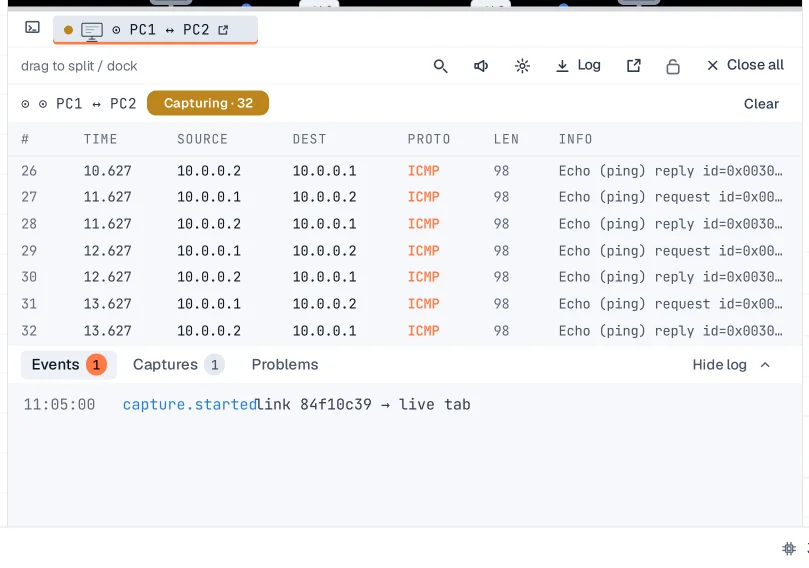
Generate some traffic - here ping from PC1 to PC2. Packets appear in the viewer as they cross the wire, with the live count in the status pill.
To analyse the capture offline, stop it and use the download action - you get a standard .pcap file that opens in Wireshark. Finished and historical captures for the lab are listed under capture history, so a capture survives the session that recorded it.