Zoom, fit, minimap and view options
The canvas is an infinite surface - these controls keep you oriented. Zoom lives in the mini toolbar, the minimap tracks where you are, and the View menu toggles every overlay.
The zoom cluster sits in the canvas toolbar: − and + step the zoom, the percentage resets to 100%, and Fit all nodes to screen frames the whole topology - your fastest way home on a big lab.
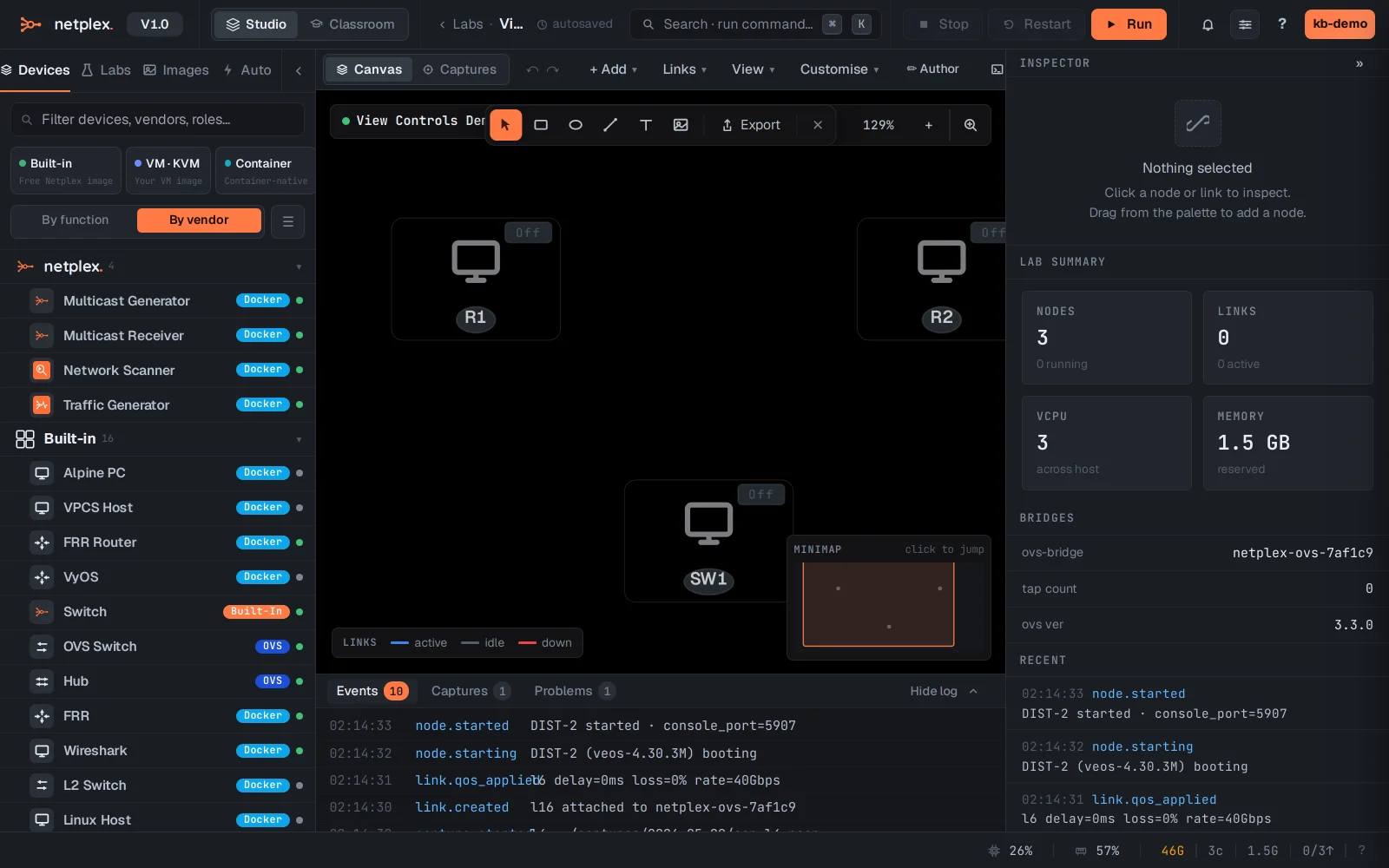
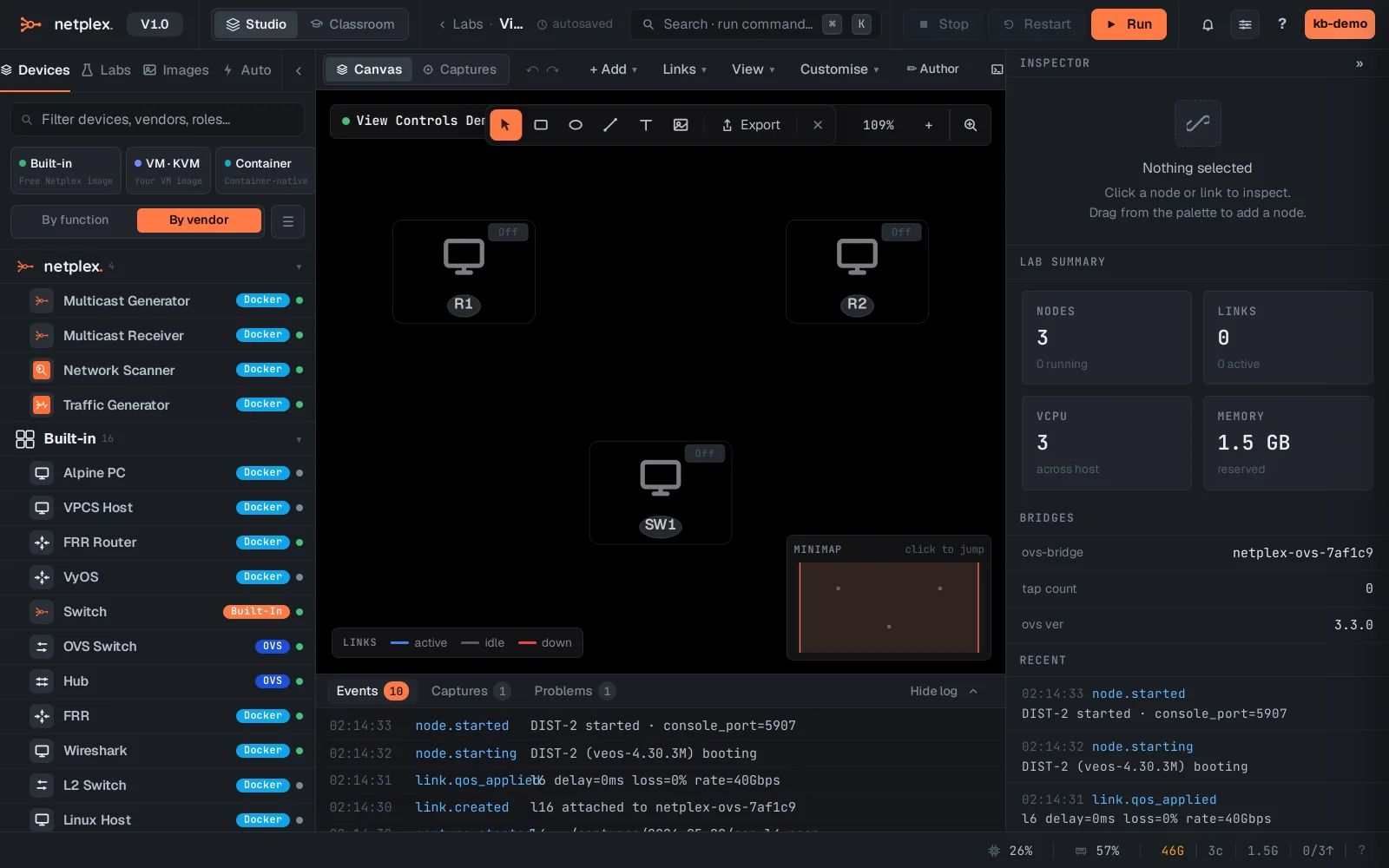
The minimap (bottom-right) shows the whole topology with your viewport as a rectangle - click anywhere on it to jump. Toggle it under View → Minimap.
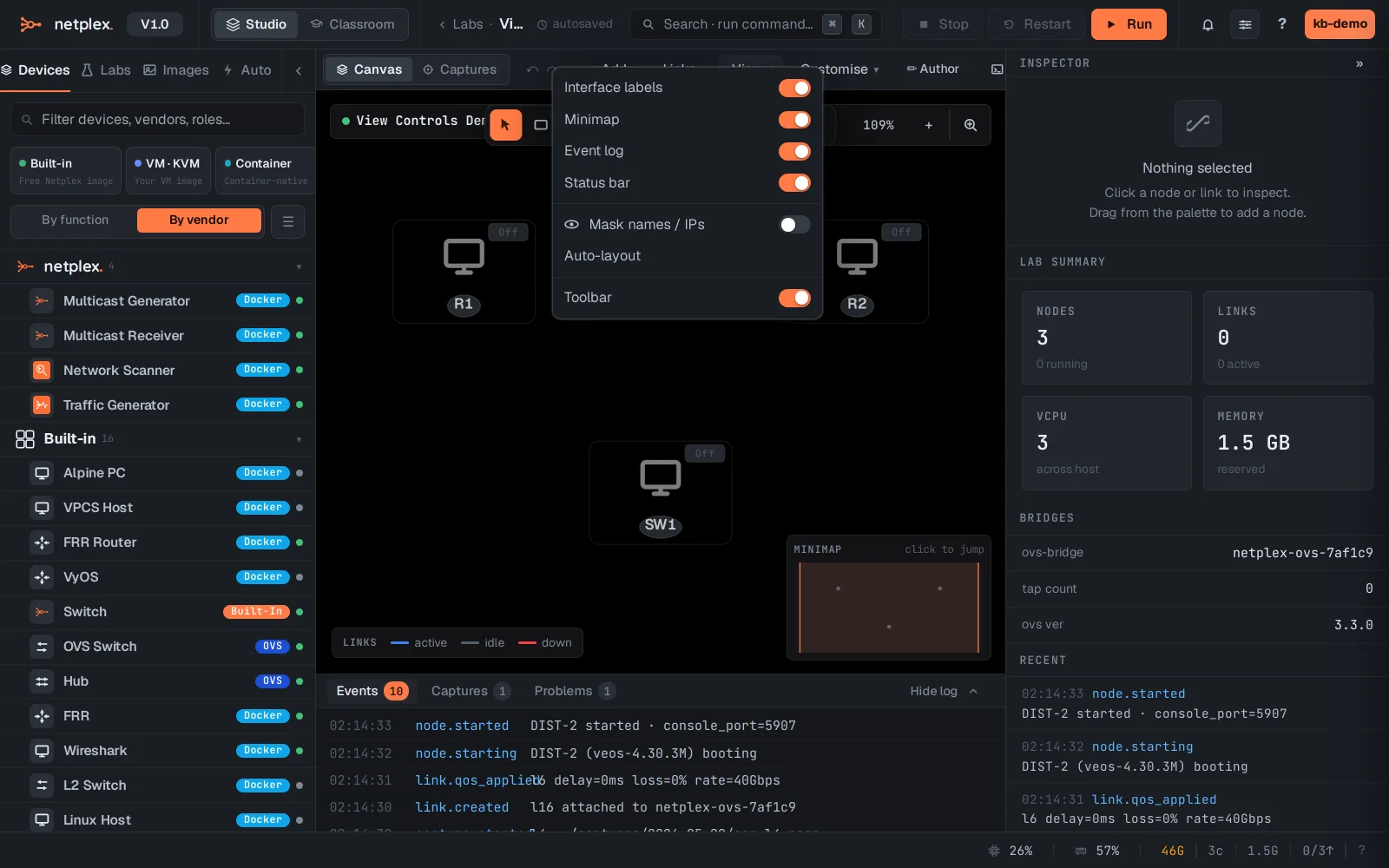
The View menu holds the overlay toggles: interface labels, minimap, event log, status bar, auto-layout and name/IP masking (for screenshots and teaching).
Pan by dragging empty canvas; scroll to zoom at the pointer. The view (pan + zoom) is remembered per lab, so you come back to exactly where you left off.