Export the topology as PNG or PDF
For documentation, reports or a slide, export the canvas as an image. Everything you see goes with it - nodes, links, shapes and labels - rendered cleanly without the UI chrome.
Open Customise → Export… in the canvas toolbar.
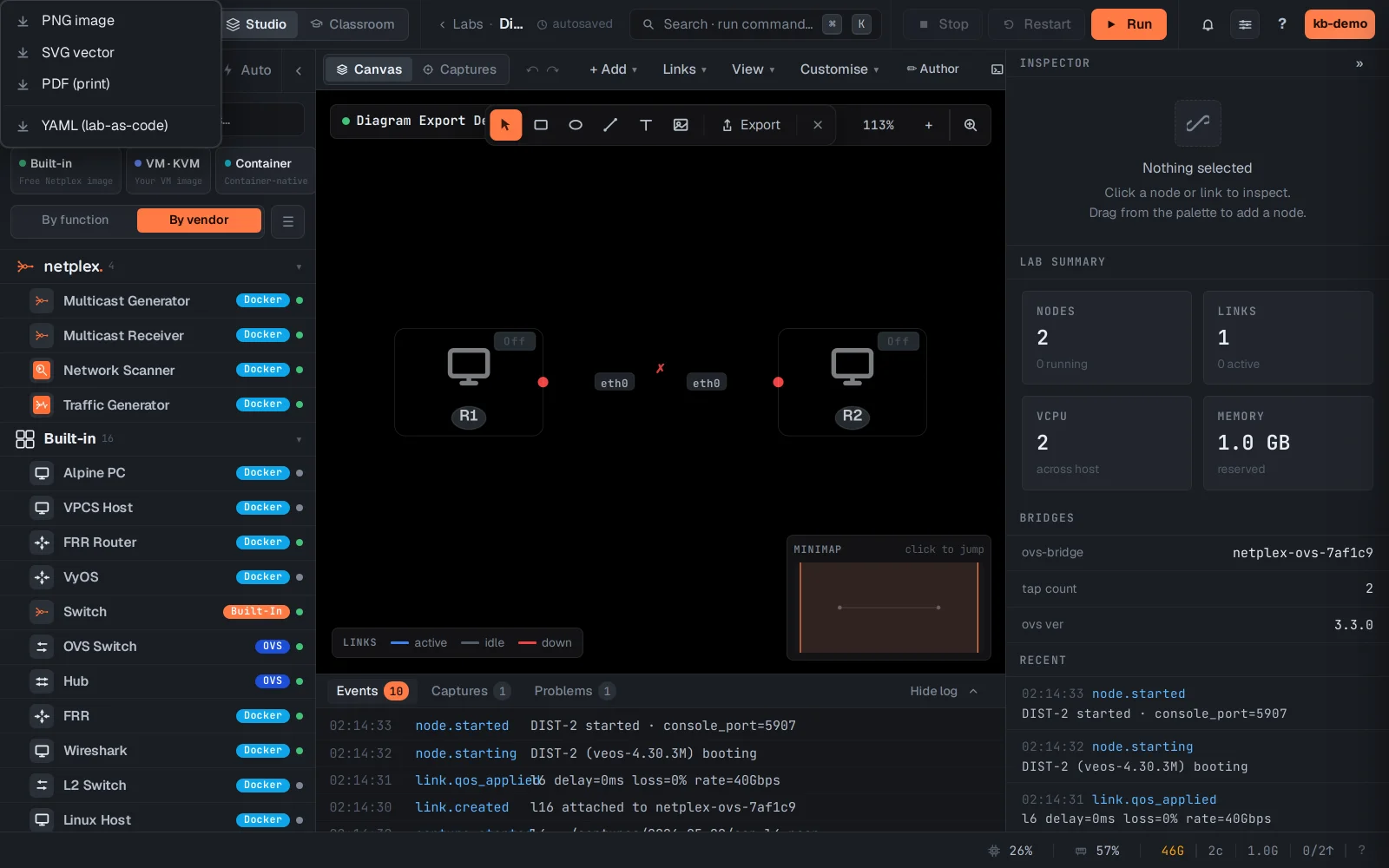
Pick the format - PNG for slides and chat, PDF for documents, SVG when you want to edit the diagram later. The exported image uses the current appearance (theme, icon style, link style), so what you see is what you ship.
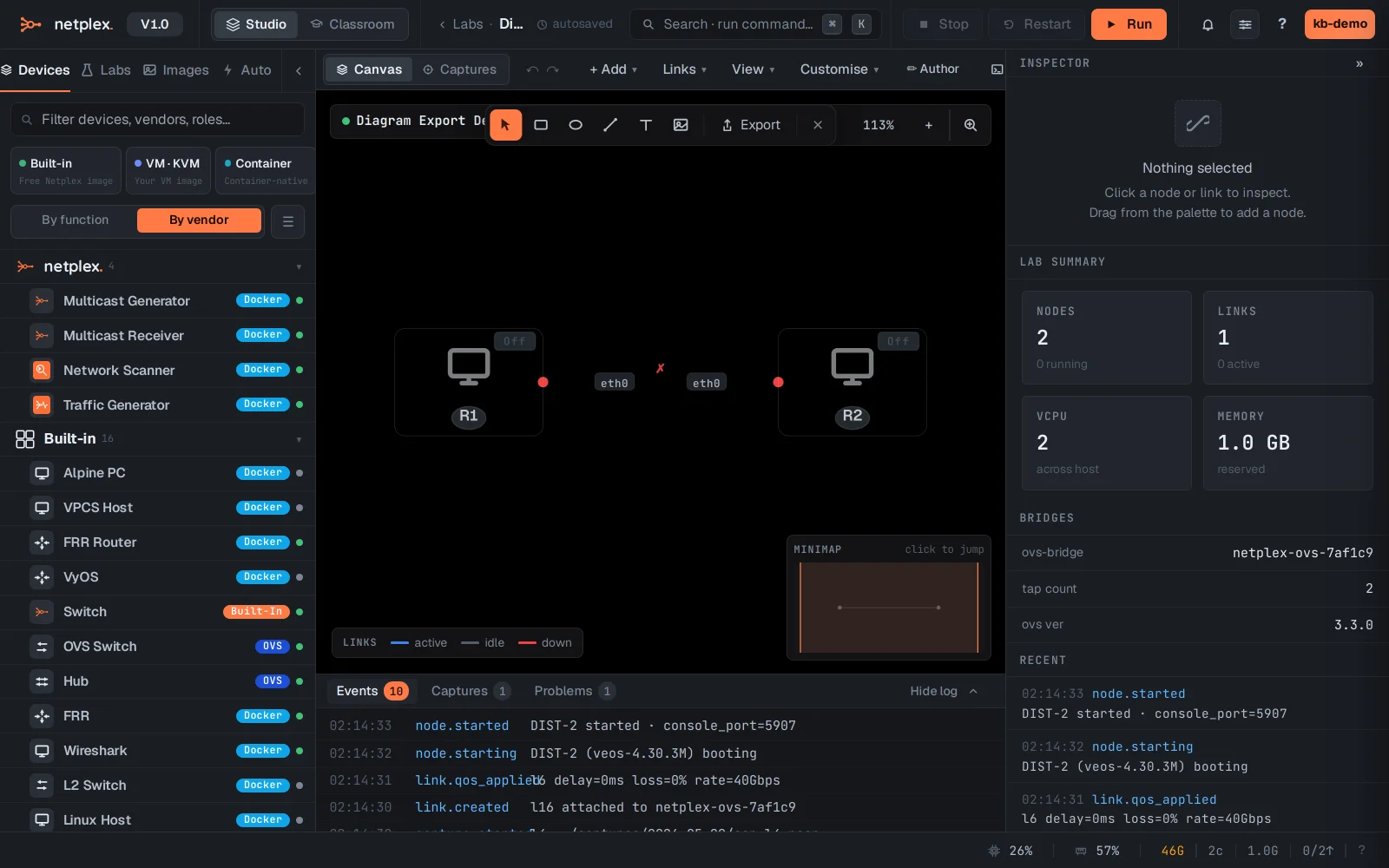
Tip: View → Mask names / IPs before exporting hides sensitive identifiers - useful for public docs or exams. Shapes and text annotations are included in exports, so a labelled zone box survives into the PNG.