How to import a Cisco IOS image (Dynamips)
Dynamips emulates classic Cisco hardware - the 1700, 3600, 3700 and 7200 routers - running the real Cisco IOS image (.image / .bin). It is the go-to for older IOS features and hardware-specific behaviour. This guide shows how to import a Cisco IOS image into netplex. so it joins your lab palette.
You supply your own licensed IOS image; netplex. handles the rest - detecting the platform, applying permissions, and (optionally) calibrating idle-PC so the router does not pin a CPU core.
Open the Library and select the Dynamips tab. Imported IOS images show here by platform - c7200, c3725, c3745, c3640, c1700 - each with its Cisco badge and the Dynamips runtime.
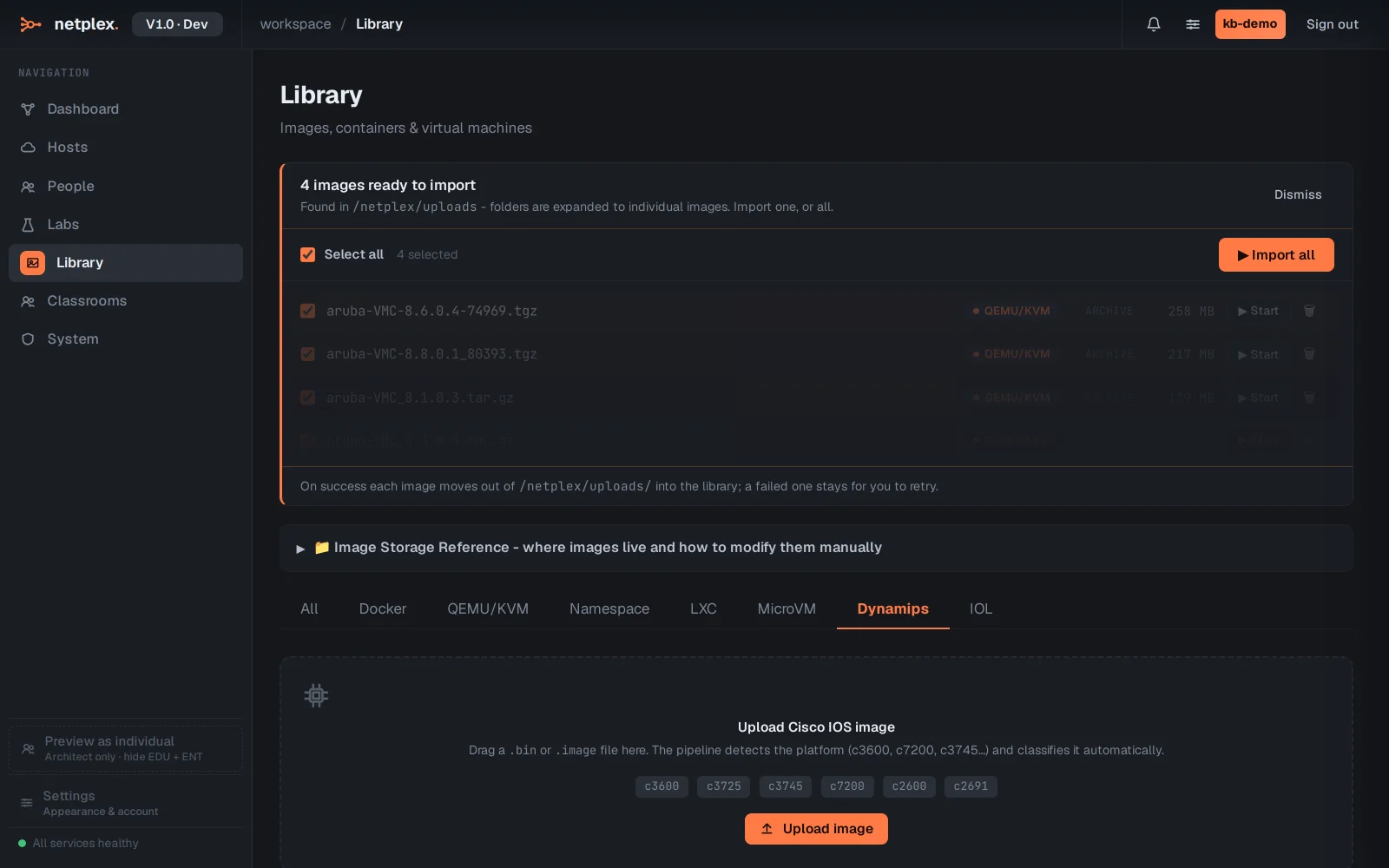
Click Upload image and pick your IOS .image file. netplex. classifies it as Dynamips, reads the platform from the filename, and sets it up. The image is stored under /netplex/ and never re-uploaded.
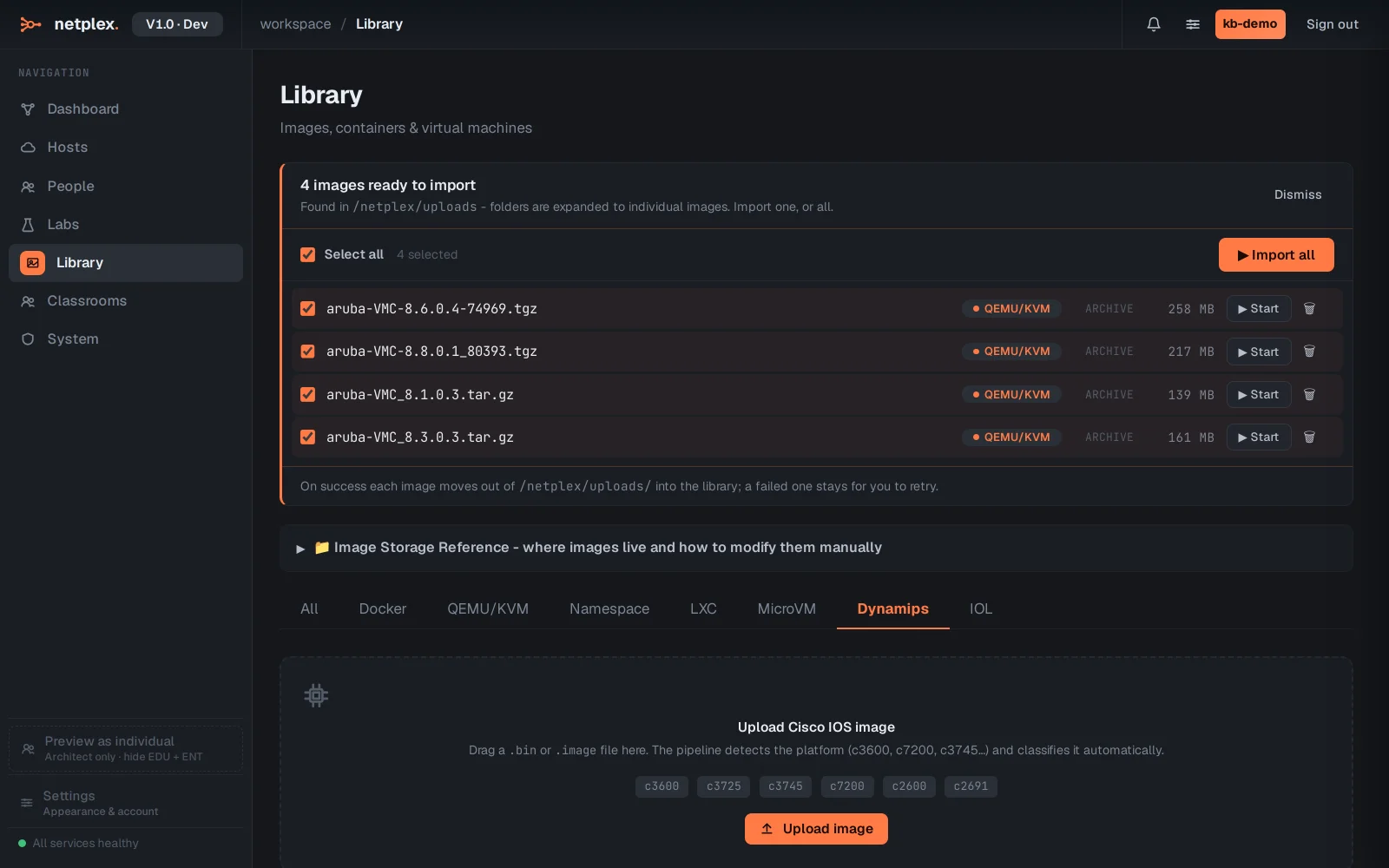
The IOS image now shows in the lab palette with its Cisco badge. Drag it onto the canvas and power it on to reach the IOS CLI. For heavy CPU on first boot, netplex. can calibrate the idle-PC value so the emulated router stays light.
Dynamips is best for classic IOS and hardware-accurate labs; for newer IOS-XE features use vIOS/CSR (QEMU) images, and for many lightweight nodes use IOL. All three import through the same Library, and mix freely in one topology. See the related guides for Cisco IOL/IOU and QEMU/qcow2 imports.