How to import a Juniper vSRX (and vMX) image
Juniper's virtual firewalls and routers - vSRX, vMX, vQFX and vJunos - ship as QEMU/KVM disk images (.qcow2 / .vmdk / .ova) and run as full virtual machines. That means the genuine Junos OS CLI, real security policies, MPLS, EVPN - not an approximation. This guide shows how to import a Juniper vSRX image into netplex. so it appears in your lab palette, ready to drag onto the canvas.
You bring your own licensed Junos image; netplex. does not ship Juniper images. Once you have the disk file, import takes about a minute and netplex. applies Juniper's recommended hardware for you.
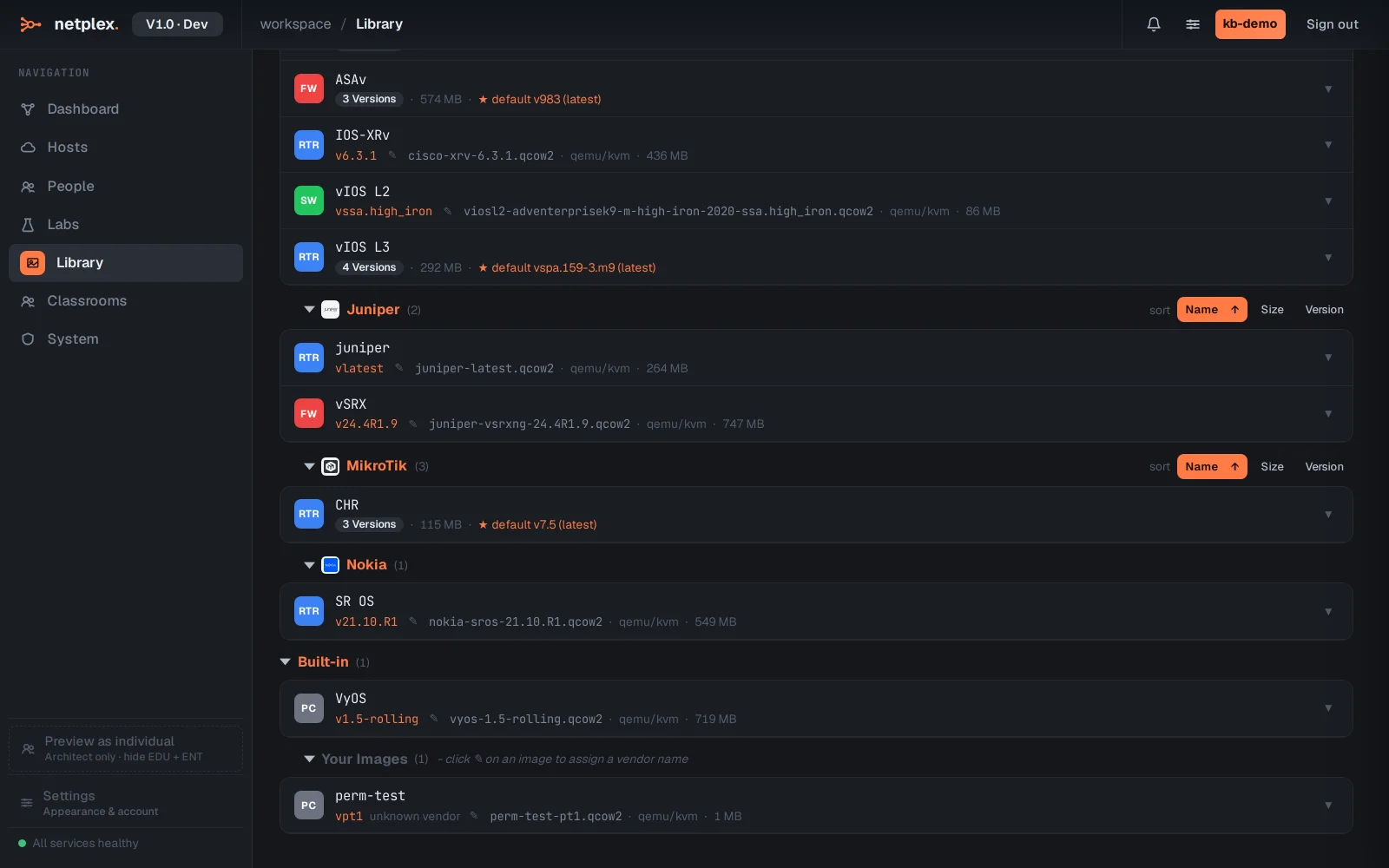
Open the Library from the left navigation and select the QEMU/KVM tab - Juniper virtual devices are full VMs, so they live here alongside vIOS, ASAv and the other vendor VMs. Imported images are grouped by vendor, each with its brand badge.
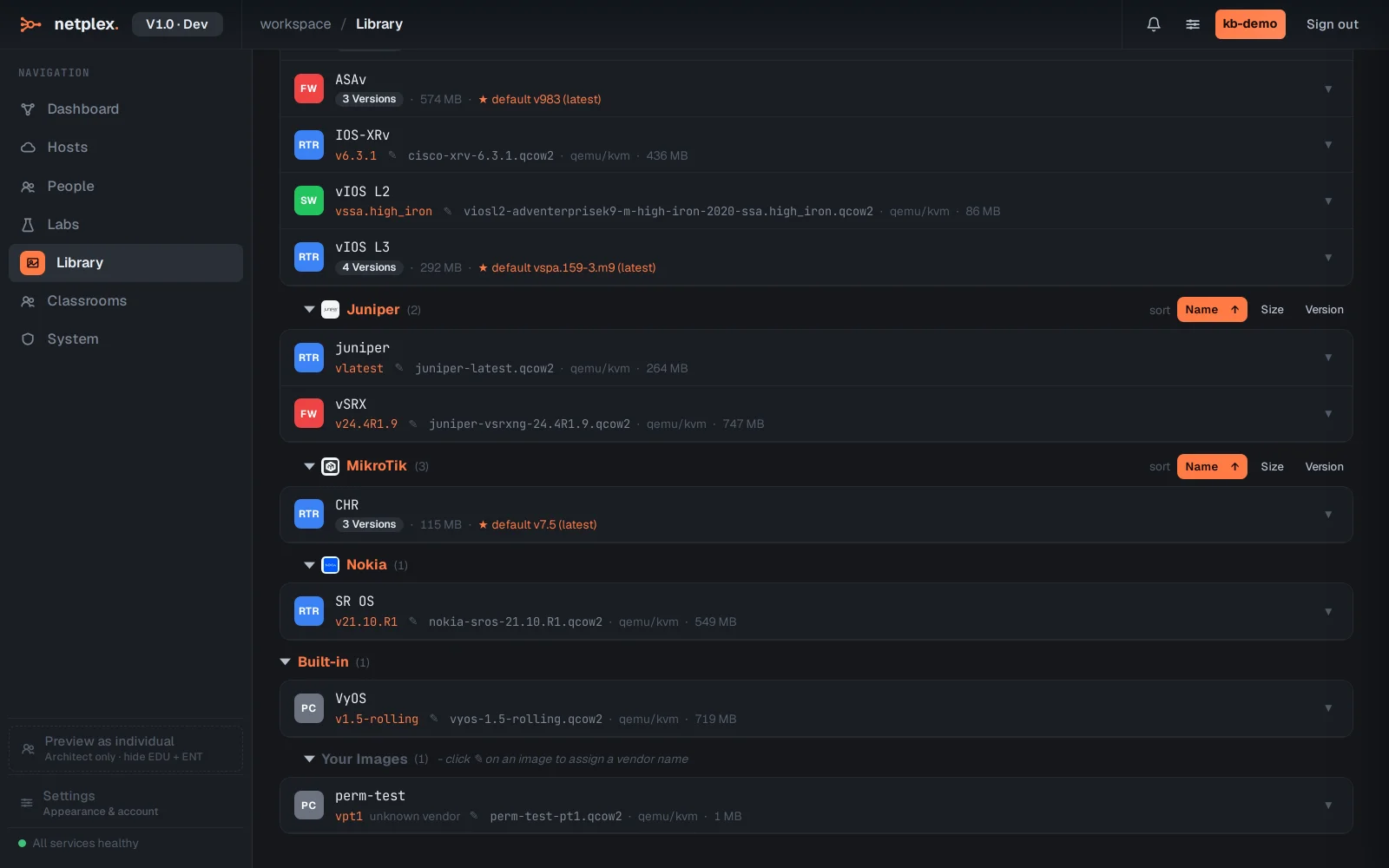
To add a new one, click Upload image and pick your Junos .qcow2 / .vmdk / .ova file - or use Import from URL to pull a multi-GB image straight onto the server. netplex. detects it as Juniper and applies the vendor-recommended hardware: a vSRX gets its 2 vCPU / 4 GB RAM and virtio NICs, so it boots correctly first time.
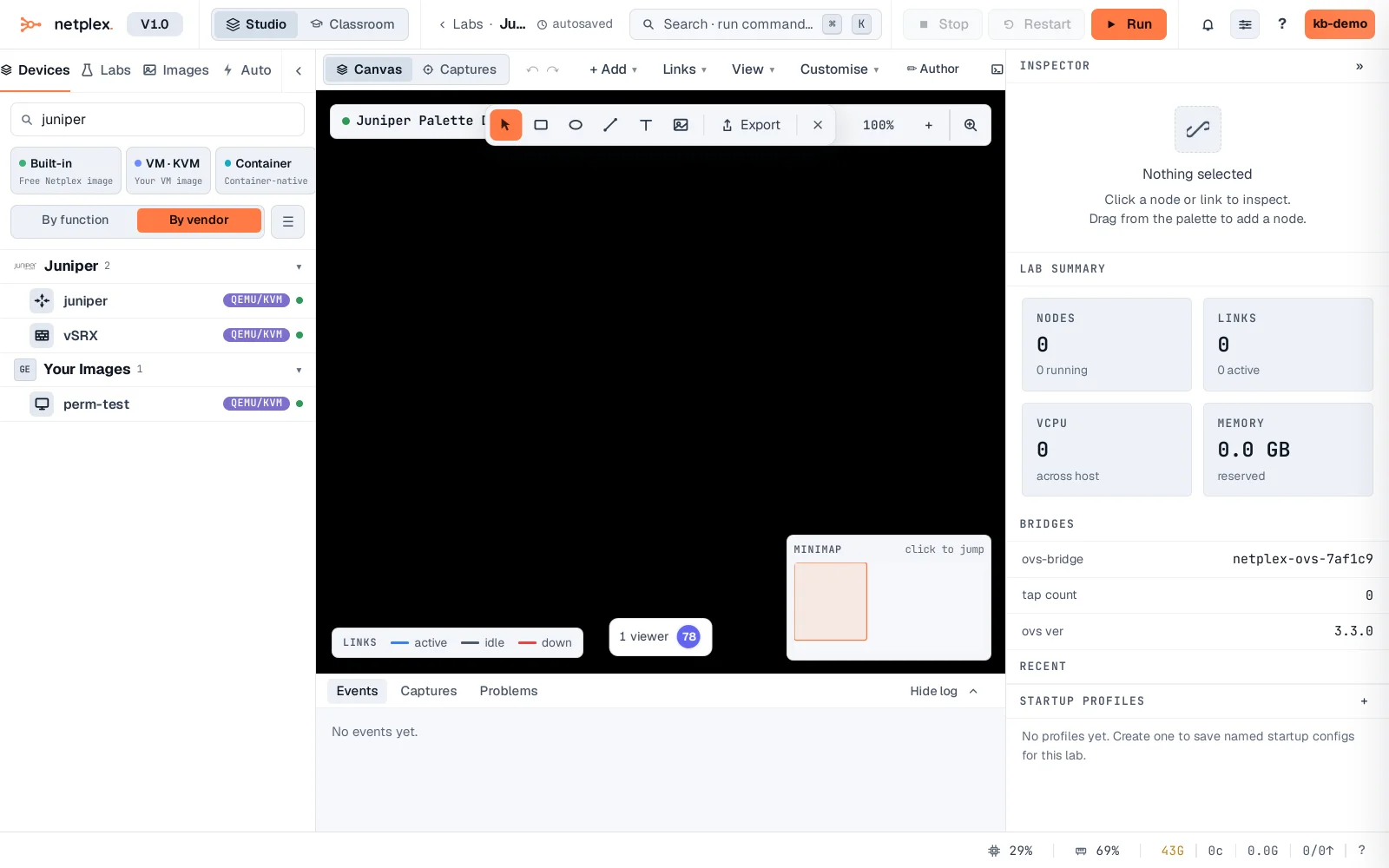
Open any lab and the Juniper image is in the device palette on the left, with its badge and the QEMU runtime - filter for juniper to find it. Drag it onto the canvas, wire it up, and power on: the real Junos firmware boots to its console under KVM. First boot of a vSRX takes a few minutes while Junos initialises; after that the CLI is fully interactive.
vSRX is the go-to for Junos security labs (zones, policies, IPsec, screen); vMX covers service-provider routing (MPLS, L3VPN, EVPN). Both are full VMs, so budget the RAM - mix them with lightweight IOL or container nodes where you do not need a full Juniper VM per device. All import through the same Library. See the related guides for importing Cisco IOL/IOU, Cisco IOS (Dynamips) and generic QEMU/qcow2 images.