How to import a QEMU / qcow2 VM image (vIOS, ASAv, vSRX)
Full vendor network OSes ship as disk images - .qcow2, .vmdk, .ova or .iso - and run as real virtual machines under KVM. This is how you get genuine Cisco vIOS / CSR / ASAv, Juniper vSRX / vMX, Arista vEOS, Nokia SROS and more. This guide shows how to import a QEMU/qcow2 image into netplex.
Bring your own licensed disk image; netplex. detects the vendor, applies the recommended hardware defaults (vCPU, RAM, NIC type, disk bus), and adds it to your palette.
Open the Library and select the QEMU/KVM tab. Imported VM images show here with their vendor badge - here Cisco vIOS and ASAv are already in place, running as full KVM virtual machines.
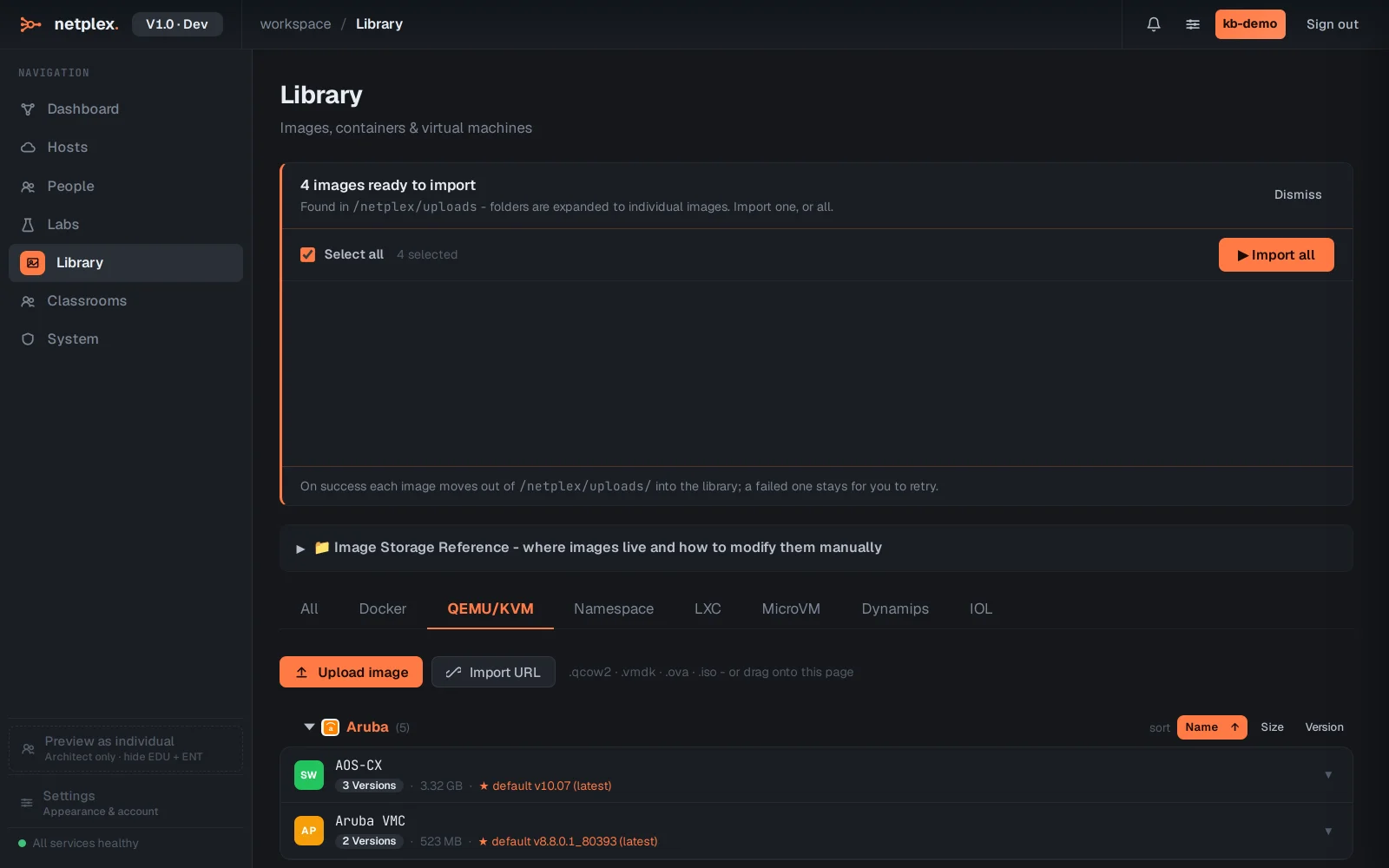
Two ways to bring an image in: Upload image picks a file from your machine, and Import from URL fetches a big image straight onto the server (handy for multi-GB vendor images kept on a NAS). Both accept .qcow2, .vmdk, .ova and .iso.
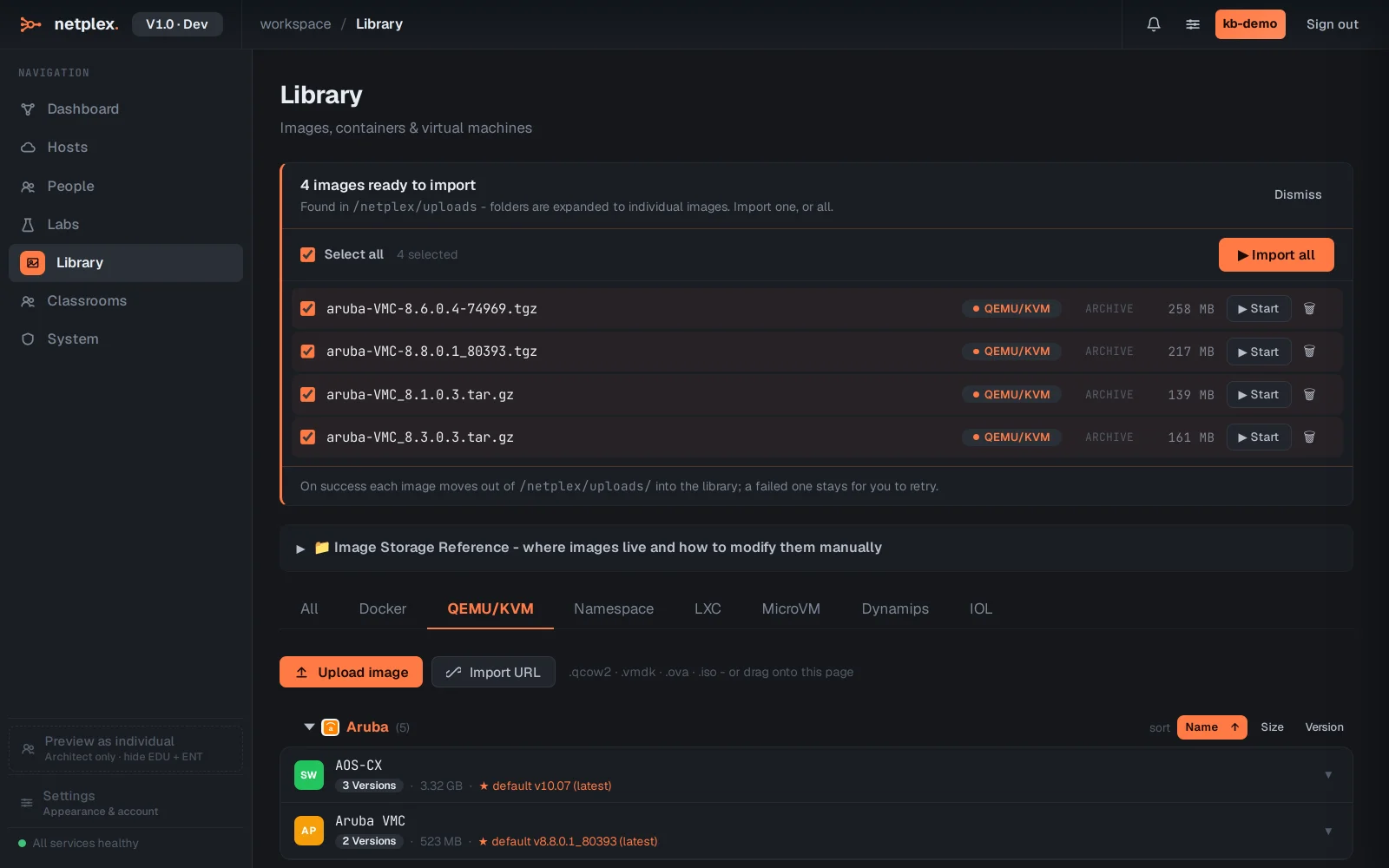
netplex. reads the vendor and applies the recommended hardware - so a vSRX gets its 2 vCPU / 4 GB and virtio NICs, a vIOS its e1000 - and the image joins the palette. Drag it onto the canvas, power on, and the real firmware boots to its console under KVM.
QEMU/qcow2 gives you the genuine vendor OS - the real firmware, every feature - at the cost of more RAM per node than IOL or Dynamips. Mix them: full VMs where you need fidelity, IOL where you need scale. All import through the same Library. See the related guides for Cisco IOL/IOU and Dynamips imports, and try a booted Cisco vIOS in "Run a real Cisco IOS router".