How to import a Cisco IOL / IOU image
Cisco IOL (IOS-on-Linux, also known as IOU, IOS-on-Unix) is the fastest way to run lots of Cisco IOS nodes - it runs IOS as a lightweight Linux process instead of a full VM, so it boots in seconds and sips RAM. This guide shows how to import an IOL/IOU image (.bin) into netplex. so it appears in your lab palette, ready to drag onto the canvas.
You will need your own licensed IOL image file - netplex. does not ship Cisco images. Once you have the .bin, import takes under a minute.
Open the Library from the left navigation and select the IOL tab. This is where every IOS-on-Linux image lives. Already-imported IOL images (the i86bi-linux-* files) show here with their Cisco badge.
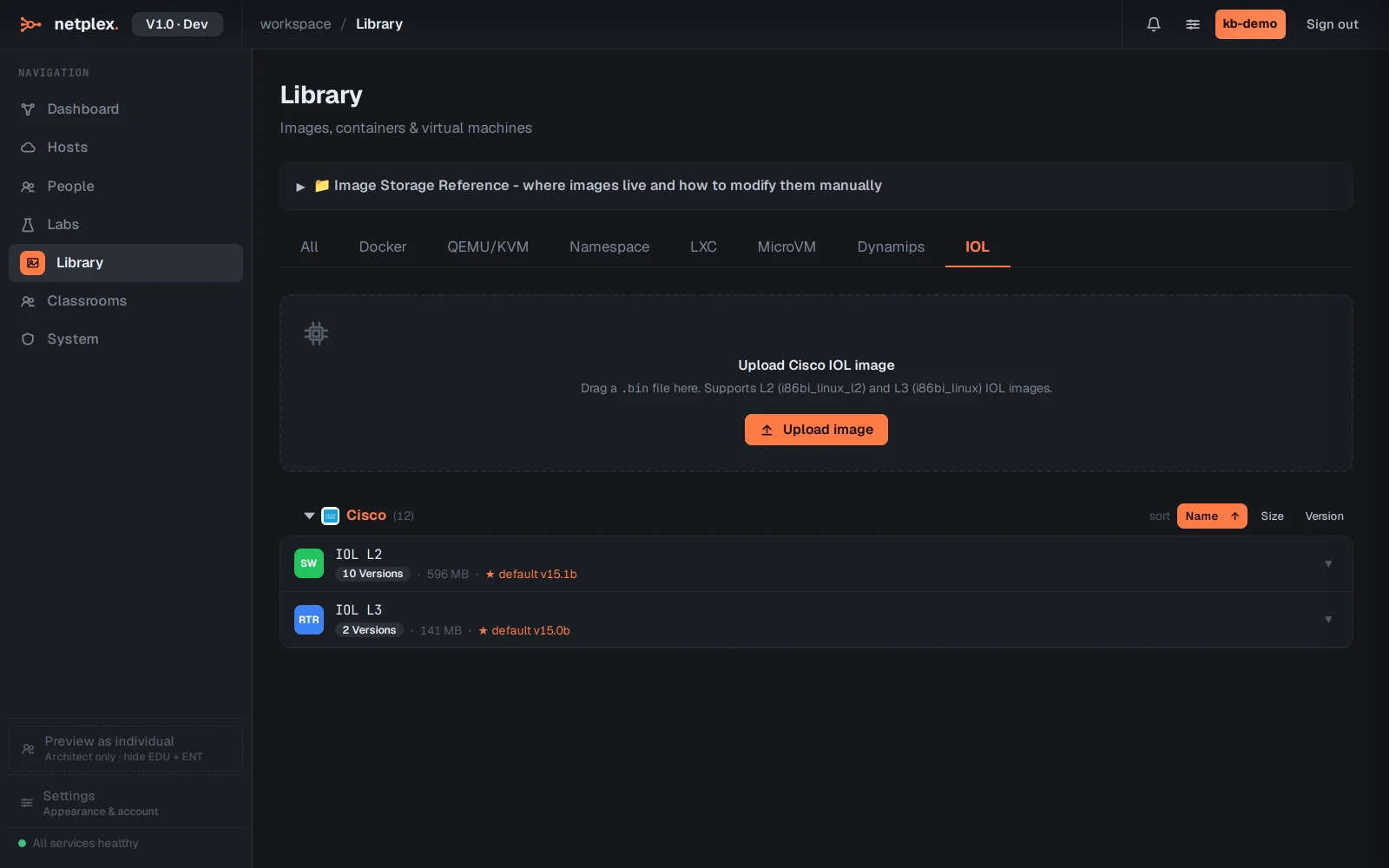
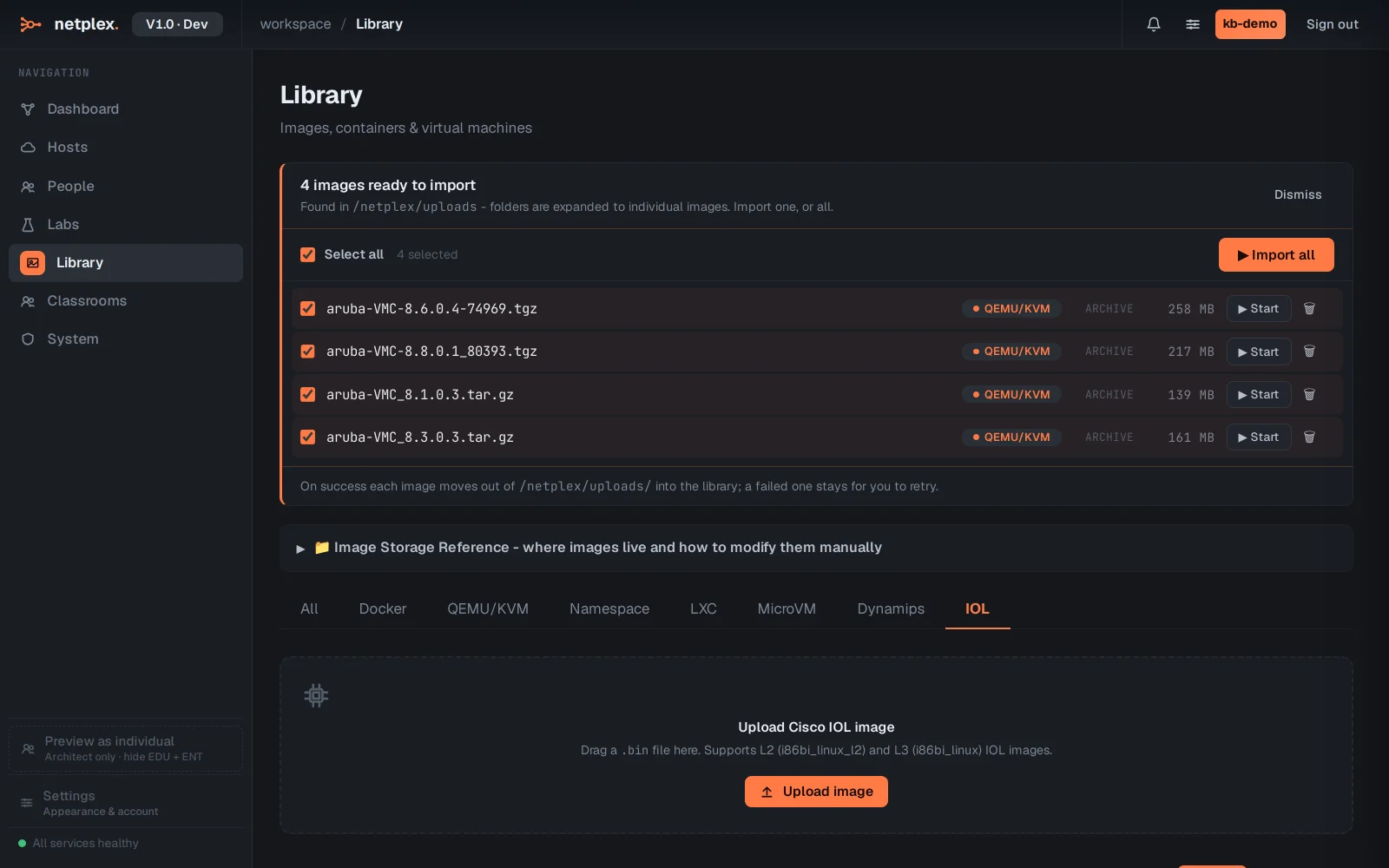
Click Upload image and choose your IOL .bin file (both the L2 switch images, i86bi-linux-l2-*, and L3 router images, i86bi-linux-l3-*, are supported). netplex. registers it, detects it as IOL, and applies the execute permission the image needs to run - no manual chmod +x.
Once imported, the IOL image appears in the device palette on the left with its Cisco badge and IOL runtime - filter for iol to find it. Drag it onto the canvas, power it on, and its console boots straight to the IOS CLI in seconds - ideal for large CCNA/CCNP switching and routing topologies where a full VM per node would exhaust the host.
IOL and IOU are the same family - IOU (IOS-on-Unix) is the older name, IOL (IOS-on-Linux) the current one; the same .bin import flow covers both. For images IOL does not implement (some data-plane features), import a full VM image (vIOS/qcow2) instead and mix them in the same lab. See the related guides for importing Cisco IOS (Dynamips) and QEMU/qcow2 images.
Before you import, check Supported Dynamips and Cisco IOL images for the full, individually-verified list from our compatibility campaign - it also documents the one real IOL image limitation we found (a switching-only gap in the i86bi-linux-l2 family) and its workaround.