How to import a QEMU / qcow2 VM image (vIOS, ASAv, vSRX)
Full vendor network OSes ship as disk images - .qcow2, .vmdk, .ova or .iso - and run as real virtual machines under KVM. This is how you get genuine Cisco vIOS / CSR / ASAv, Juniper vSRX / vMX, Arista vEOS, Nokia SROS and more. This guide shows how to import a QEMU/qcow2 image into netplex.
Bring your own licensed disk image; netplex. detects the vendor, applies the recommended hardware defaults (vCPU, RAM, NIC type, disk bus), and adds it to your palette.
Open the Library and select the QEMU/KVM tab. Imported VM images show here with their vendor badge - here Cisco vIOS and ASAv are already in place, running as full KVM virtual machines.
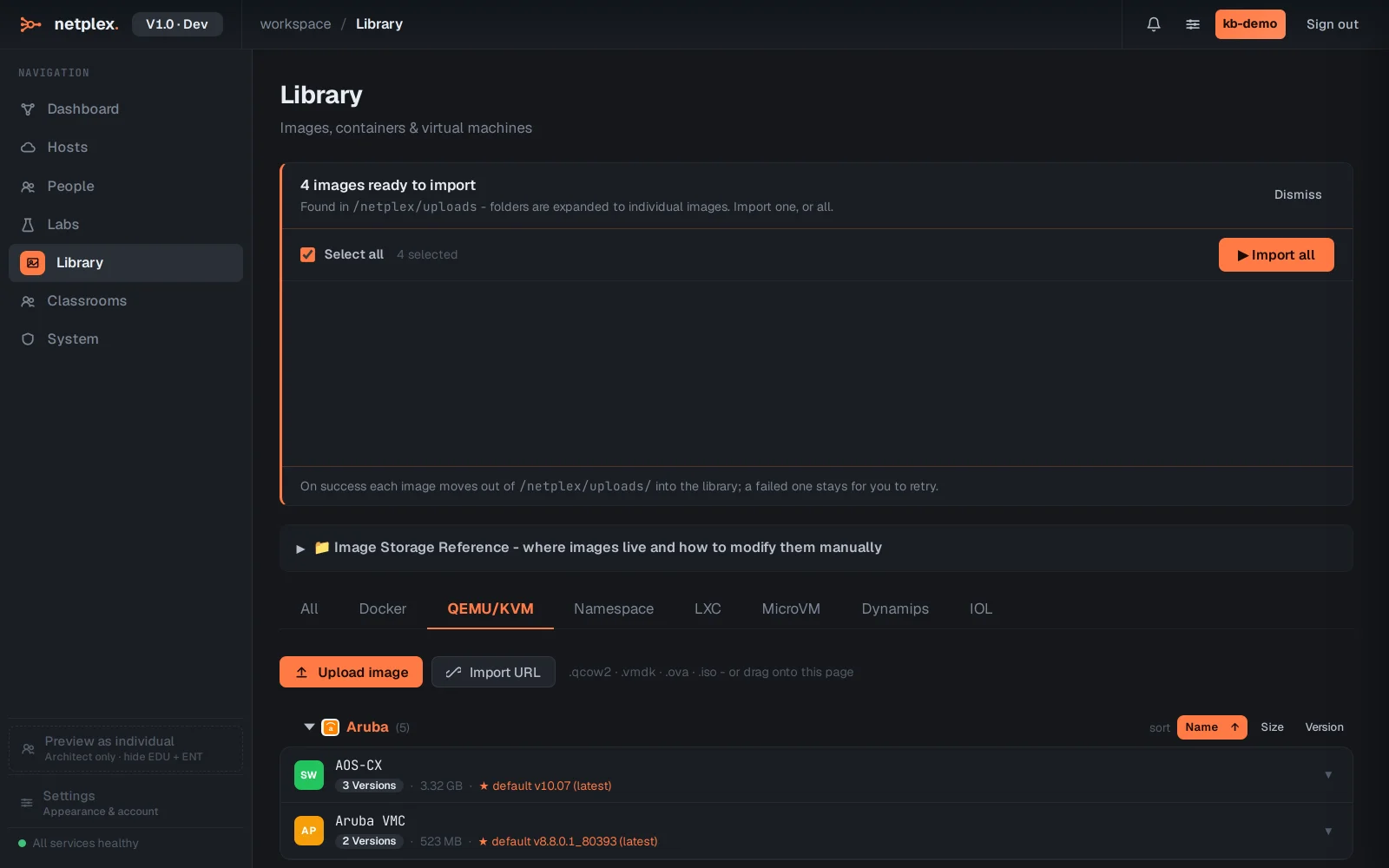
Two ways to bring an image in: Upload image picks a file from your machine, and Import from URL fetches a big image straight onto the server (handy for multi-GB vendor images kept on a NAS). Both accept .qcow2, .vmdk, .ova and .iso.
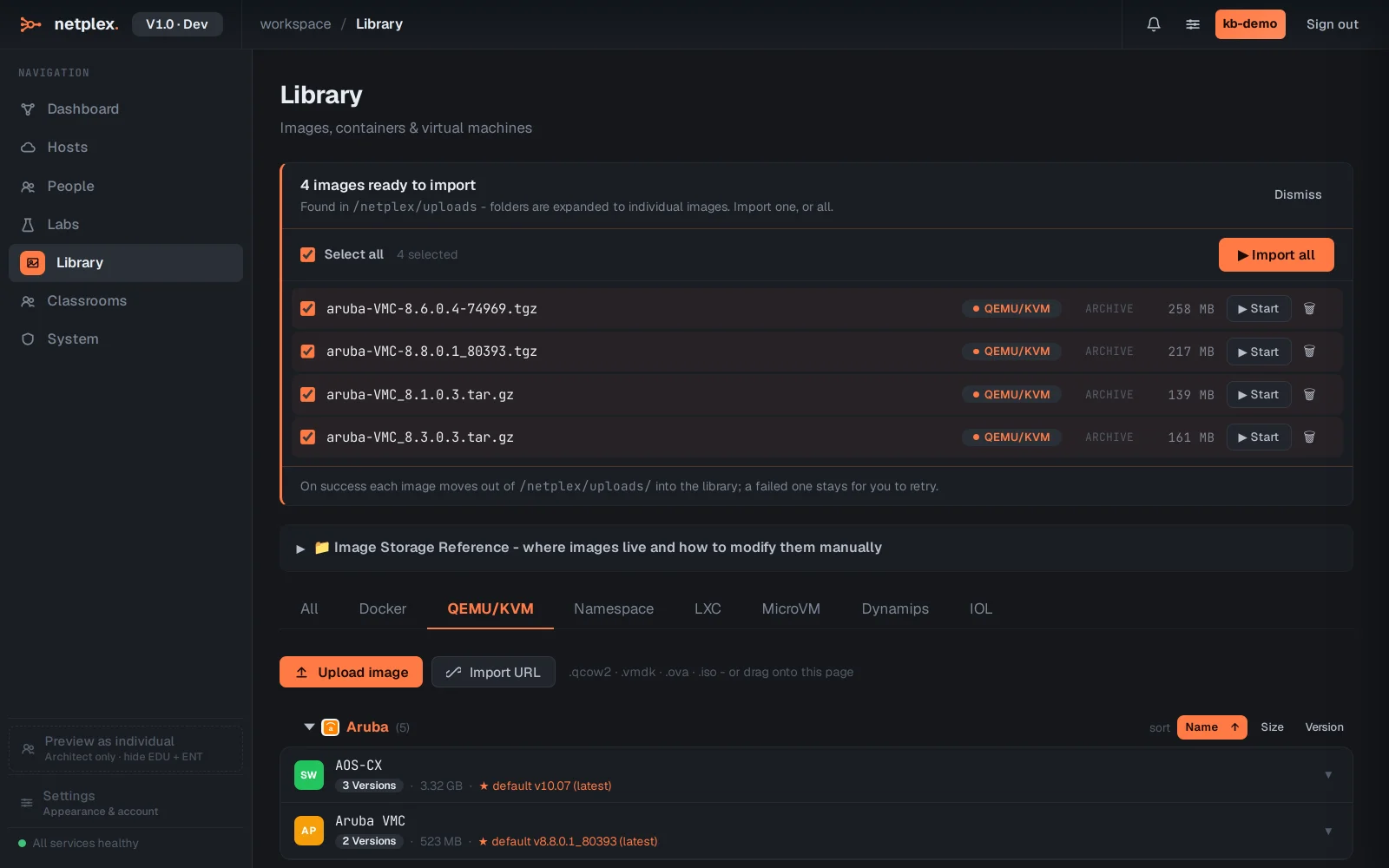
netplex. reads the vendor and applies the recommended hardware - so a vSRX gets its 2 vCPU / 4 GB and virtio NICs, a vIOS its e1000 - and the image joins the device palette on the left (here filtered to vios). Drag it onto the canvas, power on, and the real firmware boots to its console under KVM.
QEMU/qcow2 gives you the genuine vendor OS - the real firmware, every feature - at the cost of more RAM per node than IOL or Dynamips. Mix them: full VMs where you need fidelity, IOL where you need scale. All import through the same Library. See the related guides for Cisco IOL/IOU and Dynamips imports, and try a booted Cisco vIOS in "Run a real Cisco IOS router".