Capture history: find and download past captures
A packet capture does not vanish when you stop it. Every capture you take is recorded and listed in the Captures view, with its size and a one-click .pcap download - so you can grab last week's capture, re-open it in the browser, or hand it to Wireshark long after the traffic crossed the wire.
This guide runs a capture, stops it, and finds it again in the history.
Run a capture first: right-click the link, open Capture, and Start - All traffic. Generate some packets (a ping here) so there is something to save. The live viewer counts packets as they cross the wire.
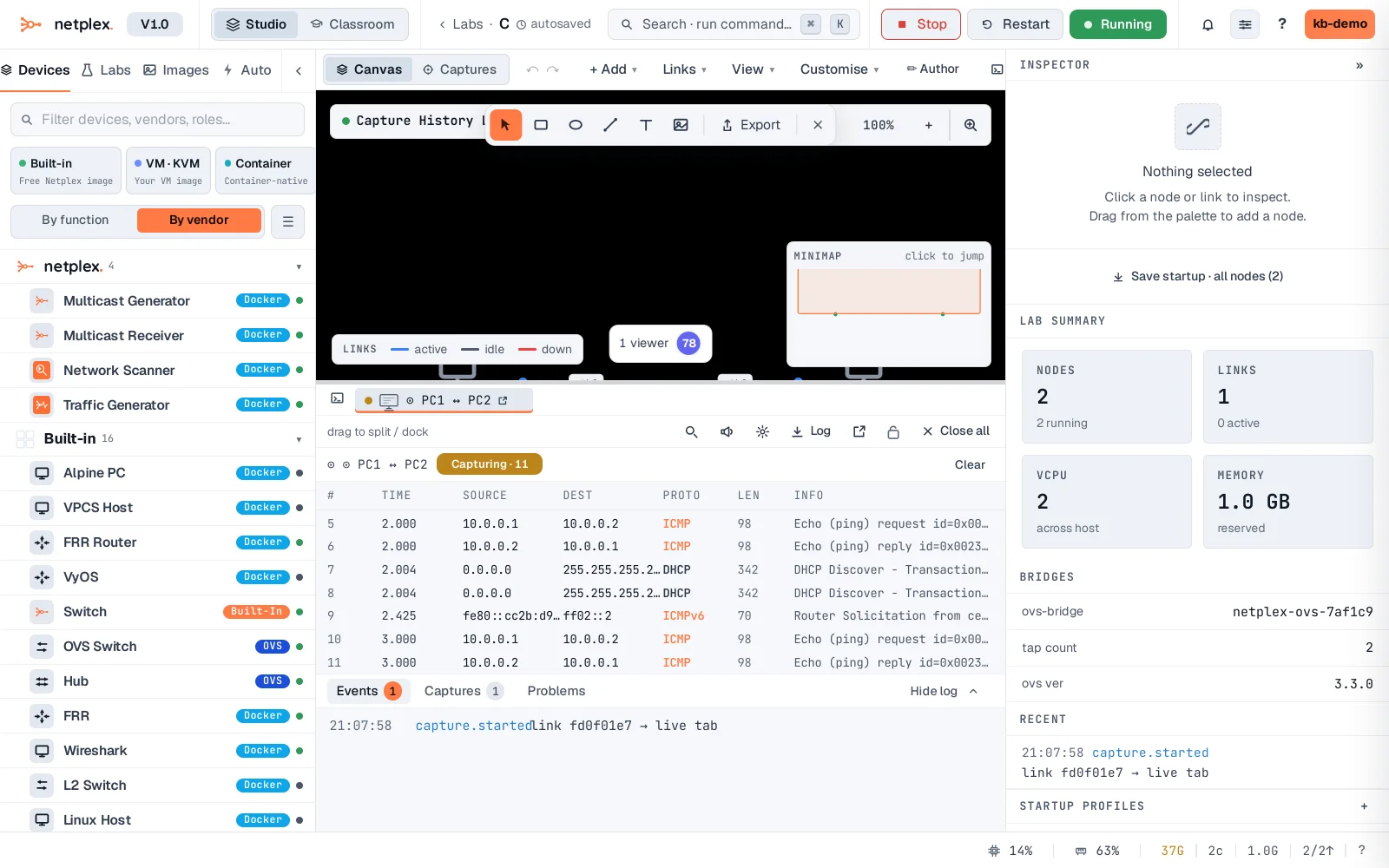
Open the Captures view from the top toolbar (the Canvas / Captures switch). Every capture on this lab is listed with its link, size and status. Stop the running one - its status flips to stopped and its .pcap is saved on the server.
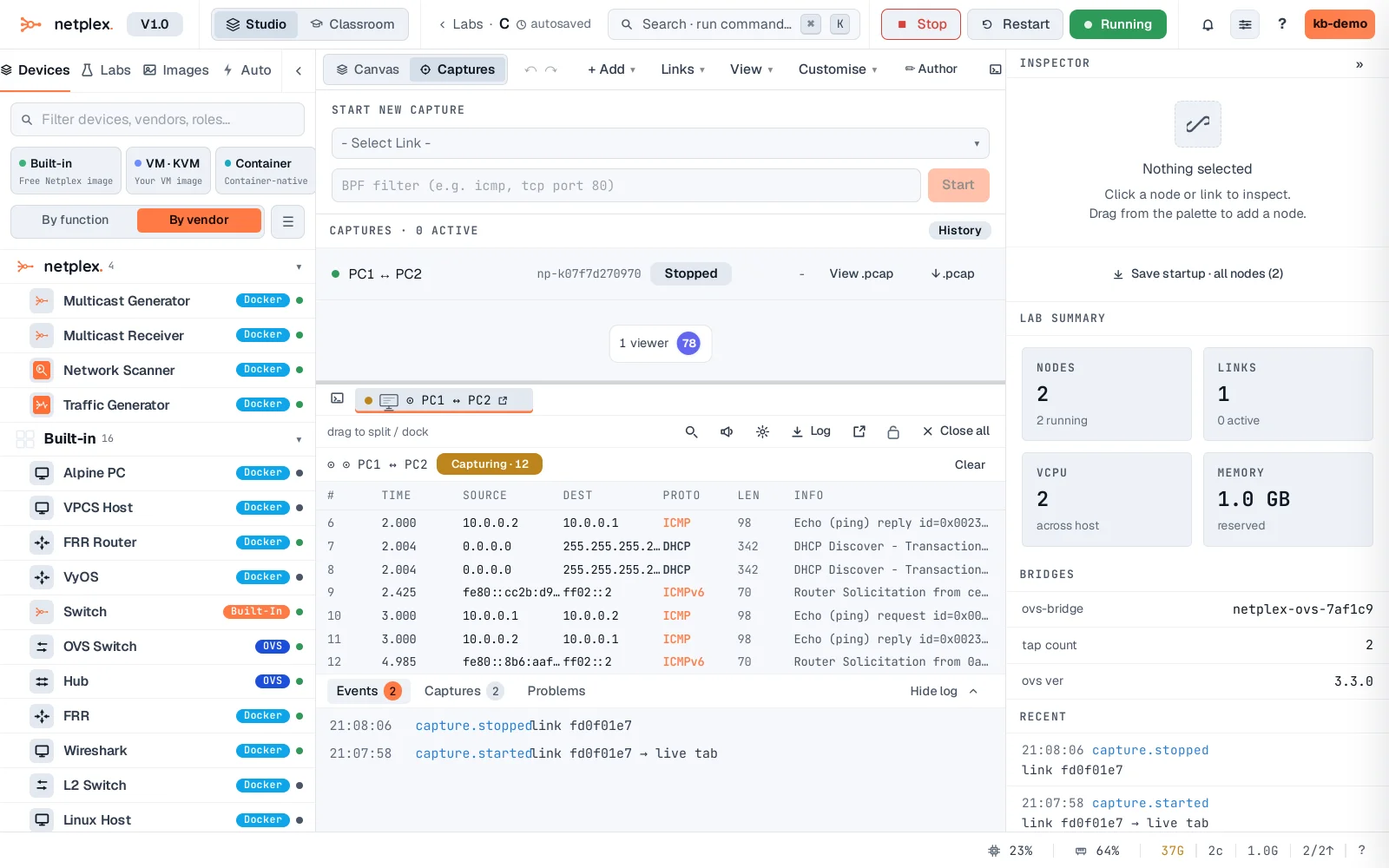
Click History to also surface captures from before the last service restart - they keep their .pcap and stay downloadable, just no longer live. View .pcap re-opens the saved packets in the browser; ↓ .pcap downloads the file for Wireshark. A capture outlives the session that recorded it.
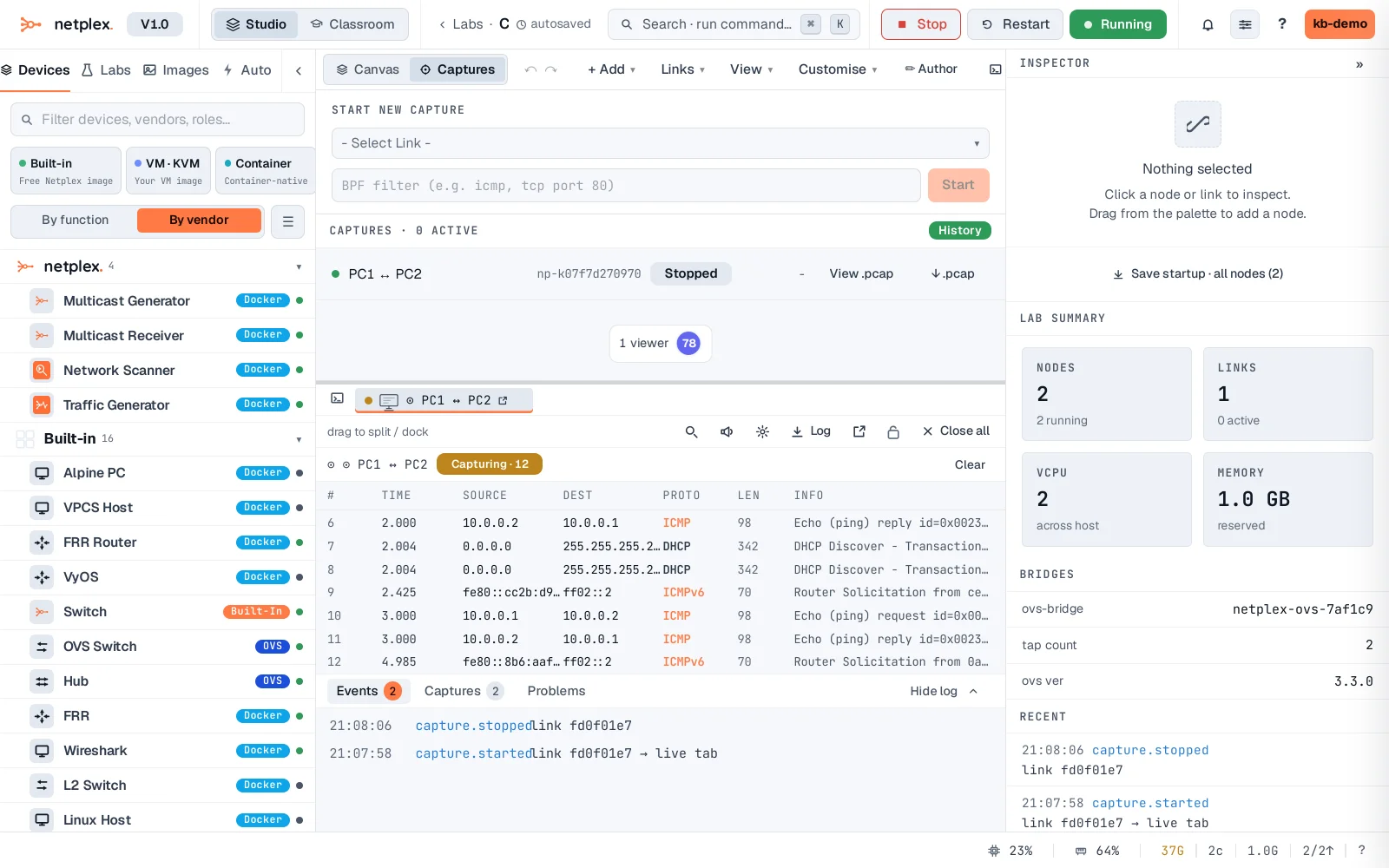
Because captures persist, packet analysis is not a race against the clock - start a capture, let a lab run overnight, and read the results in the morning. The .pcap is a standard file: everything you can do in Wireshark (follow a stream, filter, export objects) works on it. See the packet-capture guide for starting and reading a live capture.