Set the hardware defaults a device gets on the canvas
When a device lands on the canvas, its starting vCPU, RAM, NIC count and disk bus come from somewhere - Device Defaults is where an admin sets that "somewhere" for every vendor and platform on the box. Get it right once here, and every future drag-and-drop of a Cisco vIOS or a Juniper vSRX starts with hardware that actually boots, instead of a generic guess.
Open System → Nodes → Device Defaults. Every known device platform is listed with its recommended vCPU, RAM, NIC count and default image - the same table the palette reads from when a device is dropped onto a lab.
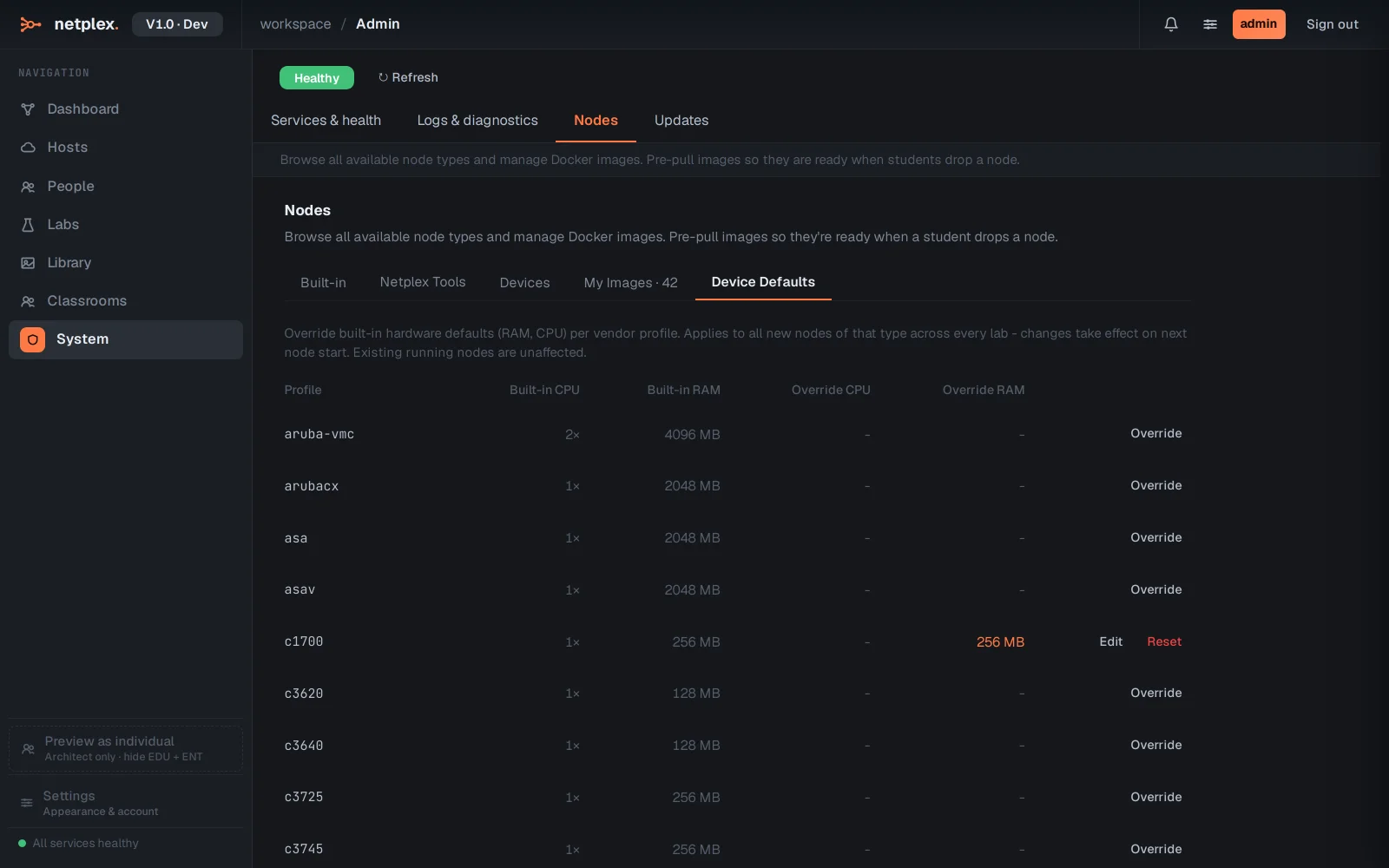
Editing a row changes what every user gets from that point on - raise a heavy platform's RAM so it stops crash-looping on first boot, or correct a NIC count that was wrong for a newly imported vendor image. This is a one-time admin fix that pays off on every lab built afterwards.
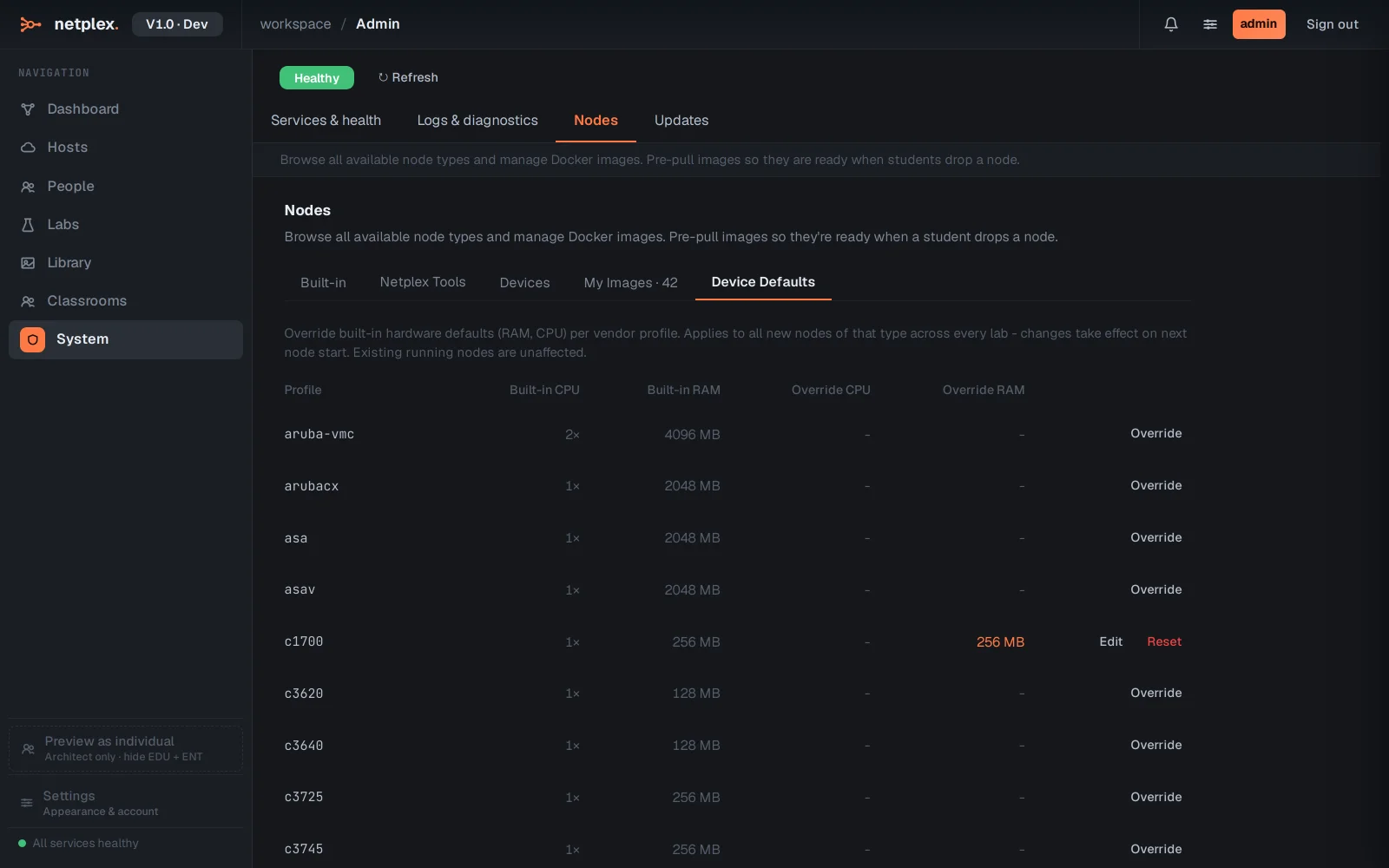
Device Defaults is the platform-wide fallback; a user can still override CPU/RAM per node in that node's own Inspector for a one-off lab. See "Configure node hardware" for the per-node version of this same control.