Select and delete several images at once
Clearing out a batch of stale uploads works the same way as bulk-deleting labs: check a box on any image row and the Library switches into selection mode, across every vendor group at once - no need to open each group and delete one row at a time.
Hover a row to reveal its checkbox, tick two images - a bulk toolbar appears with the count selected and a Select all shortcut for the whole group.
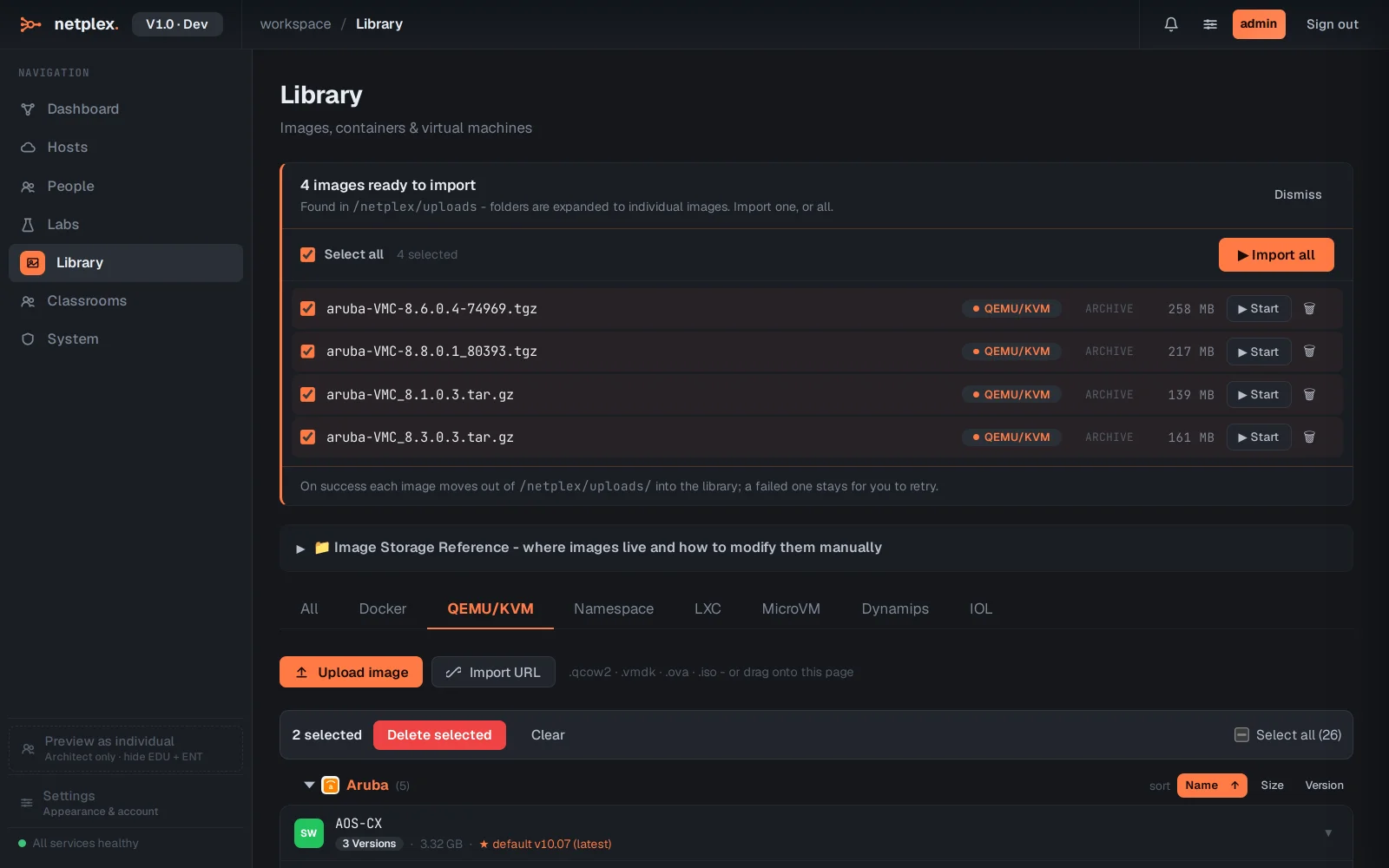
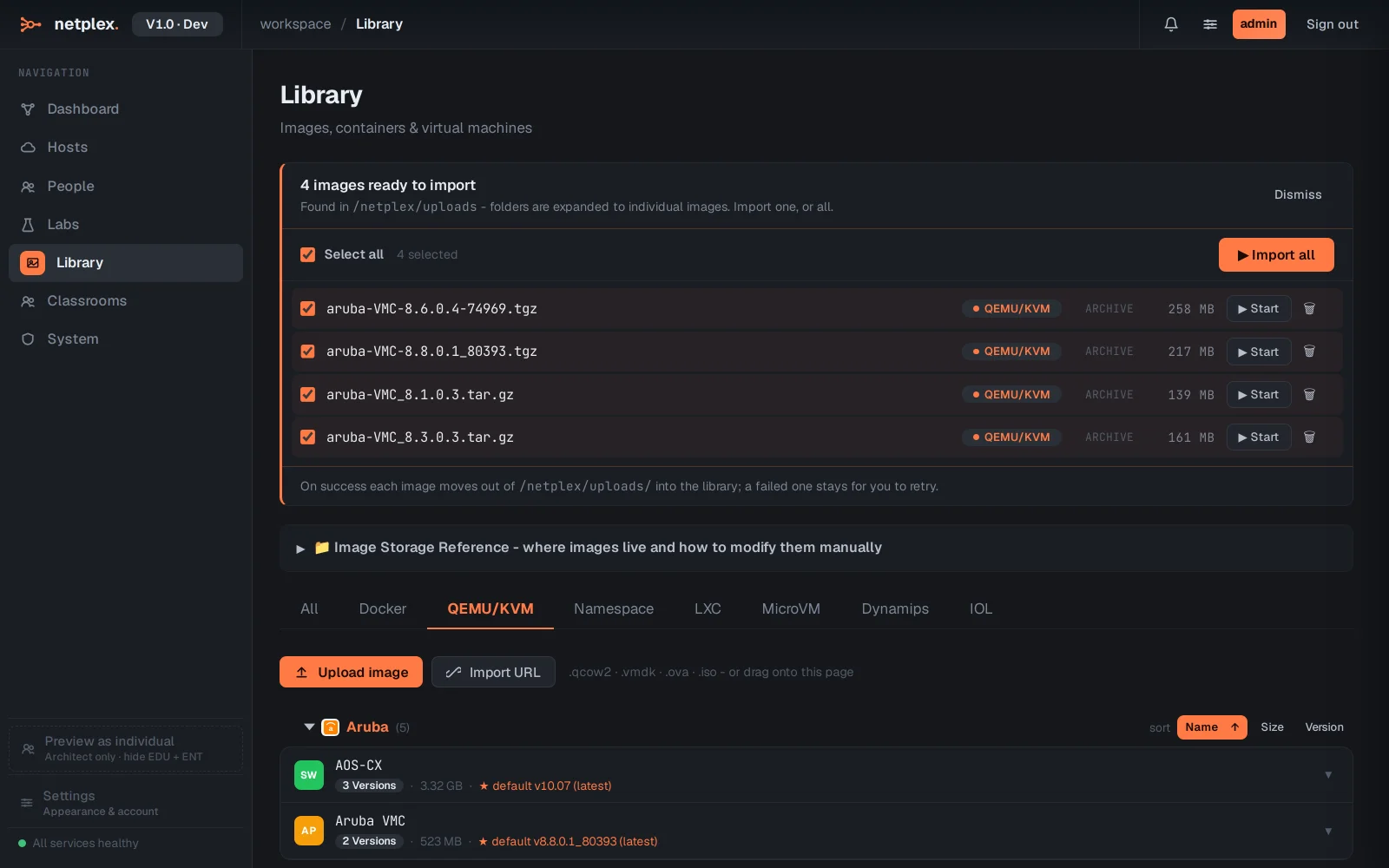
Click Delete selected, confirm once - both images are removed together. The image files go; any lab already using one keeps its own copy until rebuilt.
A group header's own checkbox selects every image in that vendor at once - useful for clearing an entire outdated firmware family in one pass. See "Delete an image you no longer need" for the single-image version.