Console mode, diagnostics and licensing info
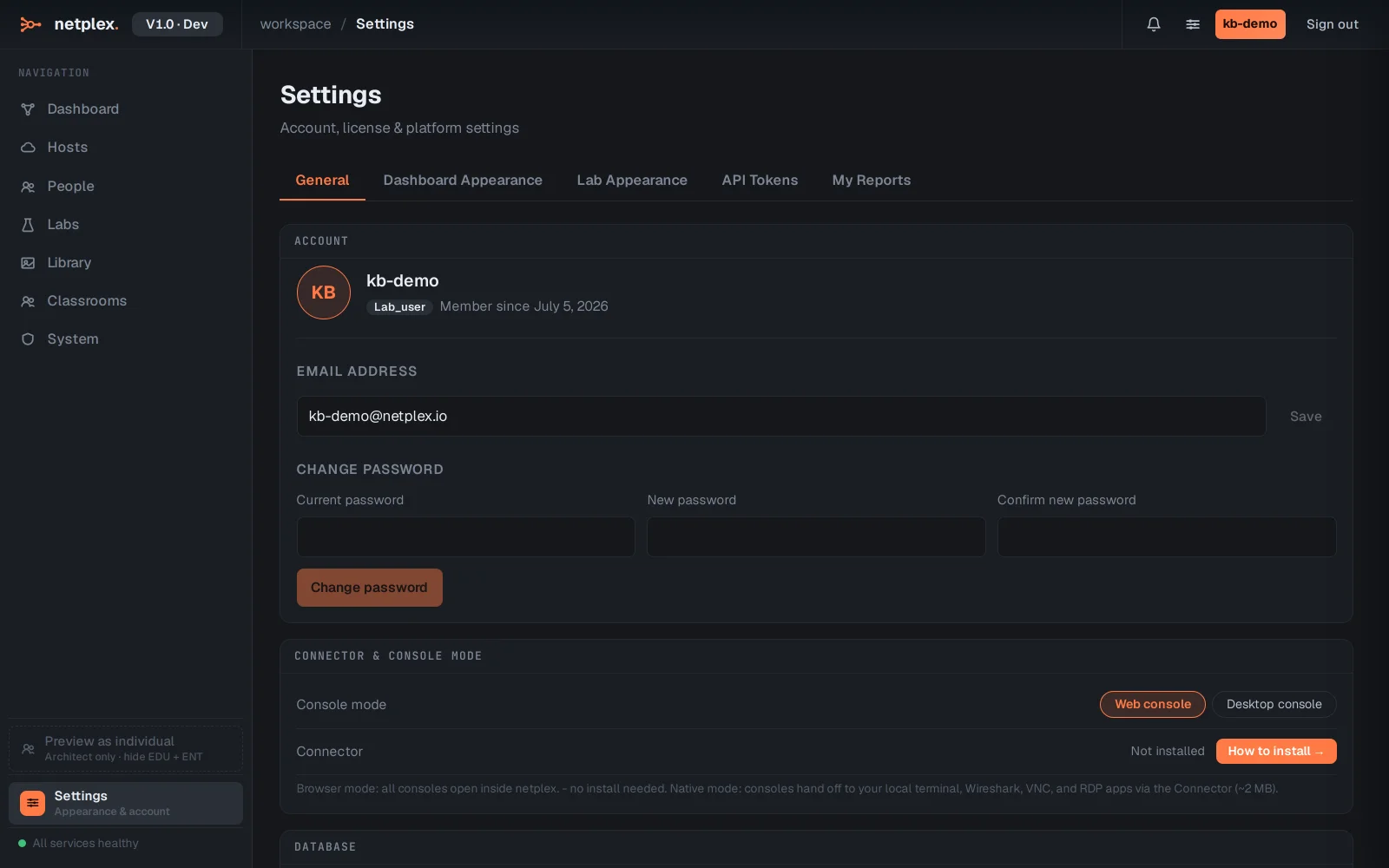
Further down Settings → General, past the account card, three more sections cover how consoles open, what the platform is (and isn't) allowed to tell home about your usage, and where the icon/logo licensing comes from.
Console mode picks how a double-clicked node opens: Web console (default - everything runs in the browser tab, nothing to install) or Desktop console (hands off to the local Connector app for a native terminal/Wireshark/VNC/RDP window instead).
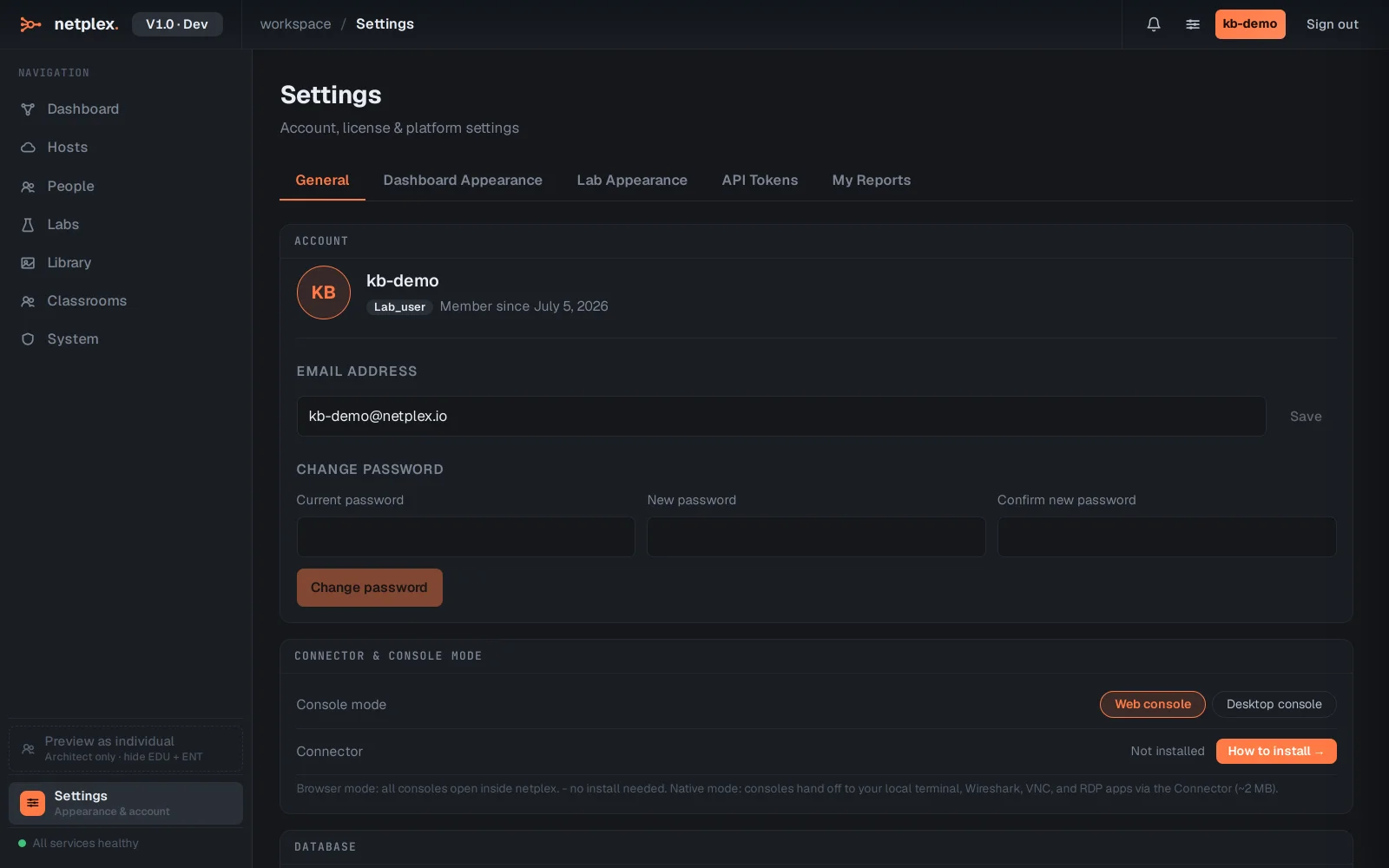
Toggling to Desktop console takes effect immediately - the next console you open hands off to the Connector instead of opening in-tab.
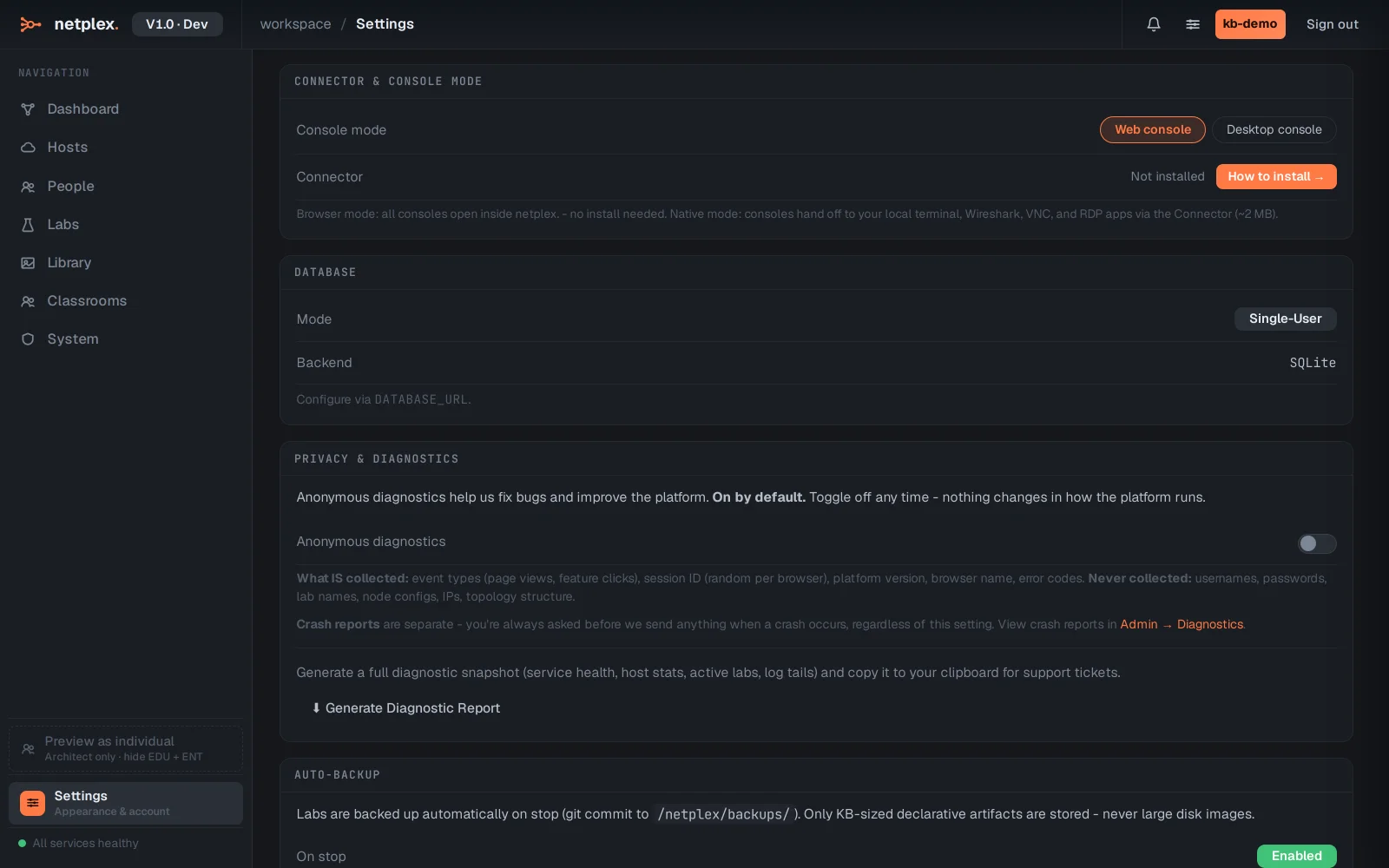
Privacy & Diagnostics: anonymous usage diagnostics are on by default to help fix bugs, and can be switched off any time with no change to how the platform runs. What is and isn't collected is spelled out right here, not buried in a policy doc.
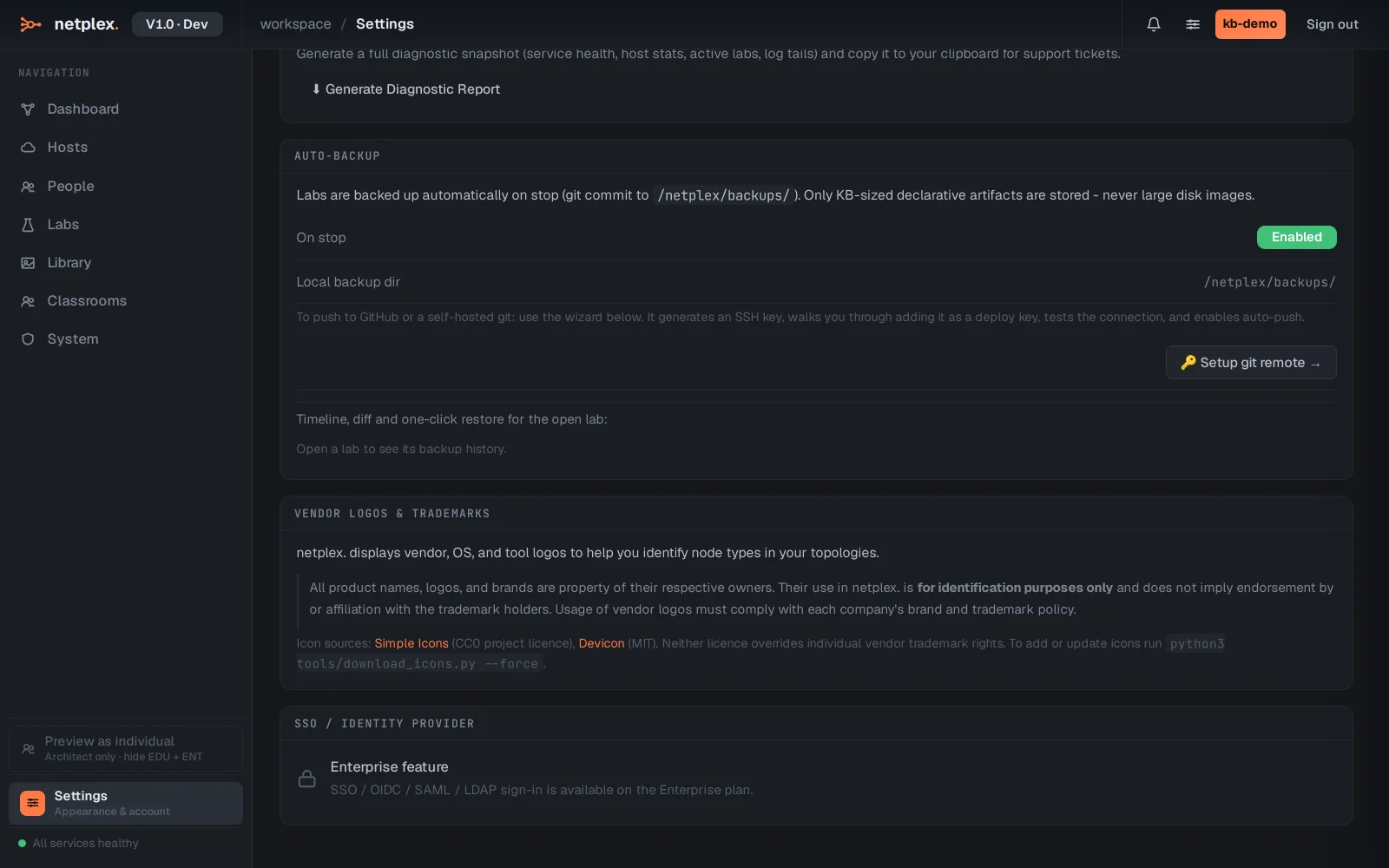
Right at the bottom, Vendor Logos & Trademarks is upfront about where every device icon comes from (Simple Icons, Devicon) and that vendor logos are used for identification only, not endorsement.
None of this needs an admin - every account controls its own console mode and diagnostics opt-out. See "Update your email and password" for the account card just above these, and "The Connector" for what Desktop console mode actually installs.