Update your email and password
Your account details live at the bottom of Settings → General - a small Account card below the theme and language options. Two things live here: the email address notifications go to, and your password.
Open Settings (it lands on General) and scroll down past the theme/language options to the Account card - your username, role, member-since date, email, and a password-change form, all in one place.
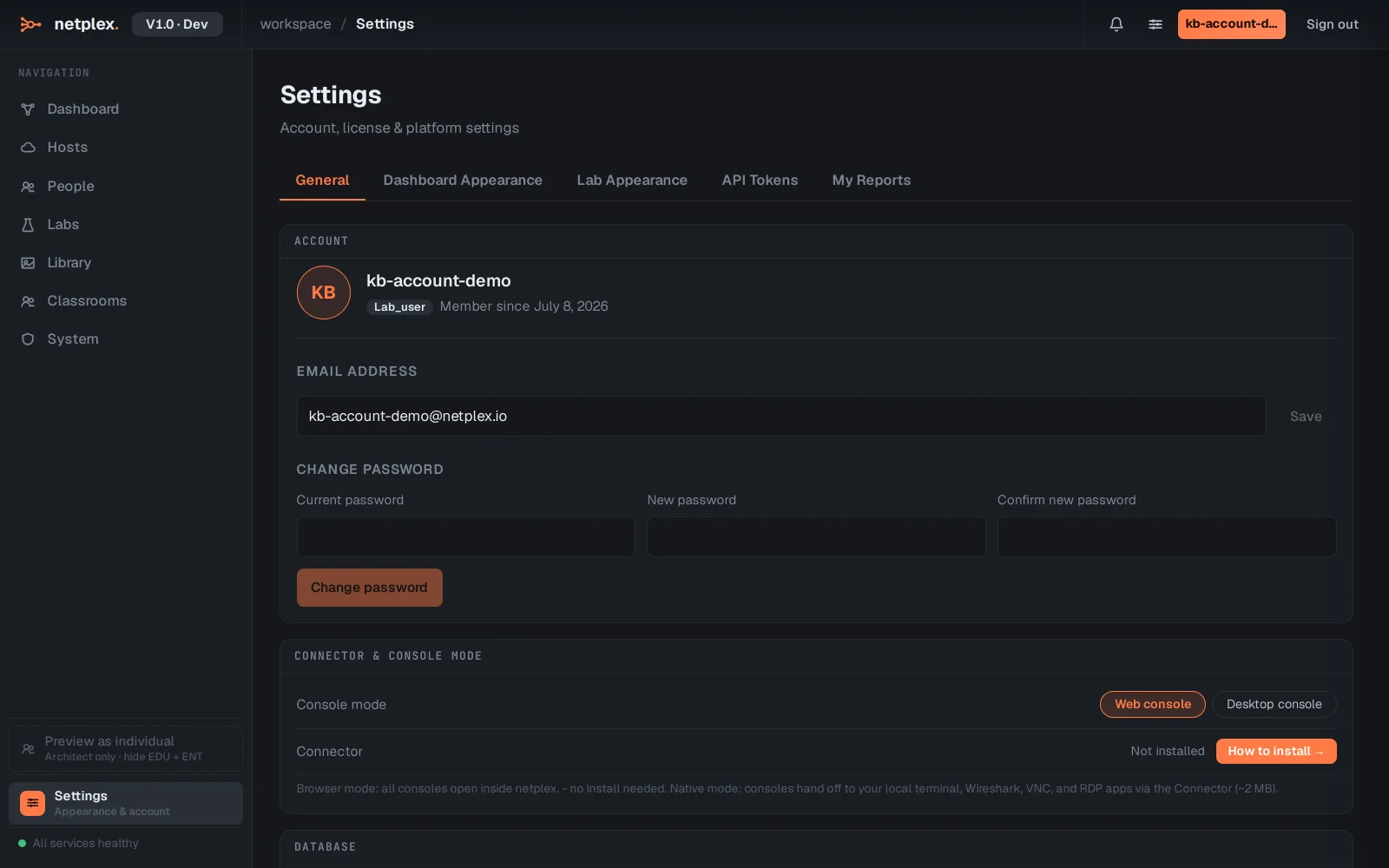
Fill in your current password and a new one, then Change password. netplex. confirms it took effect right there - no email link, no page reload.
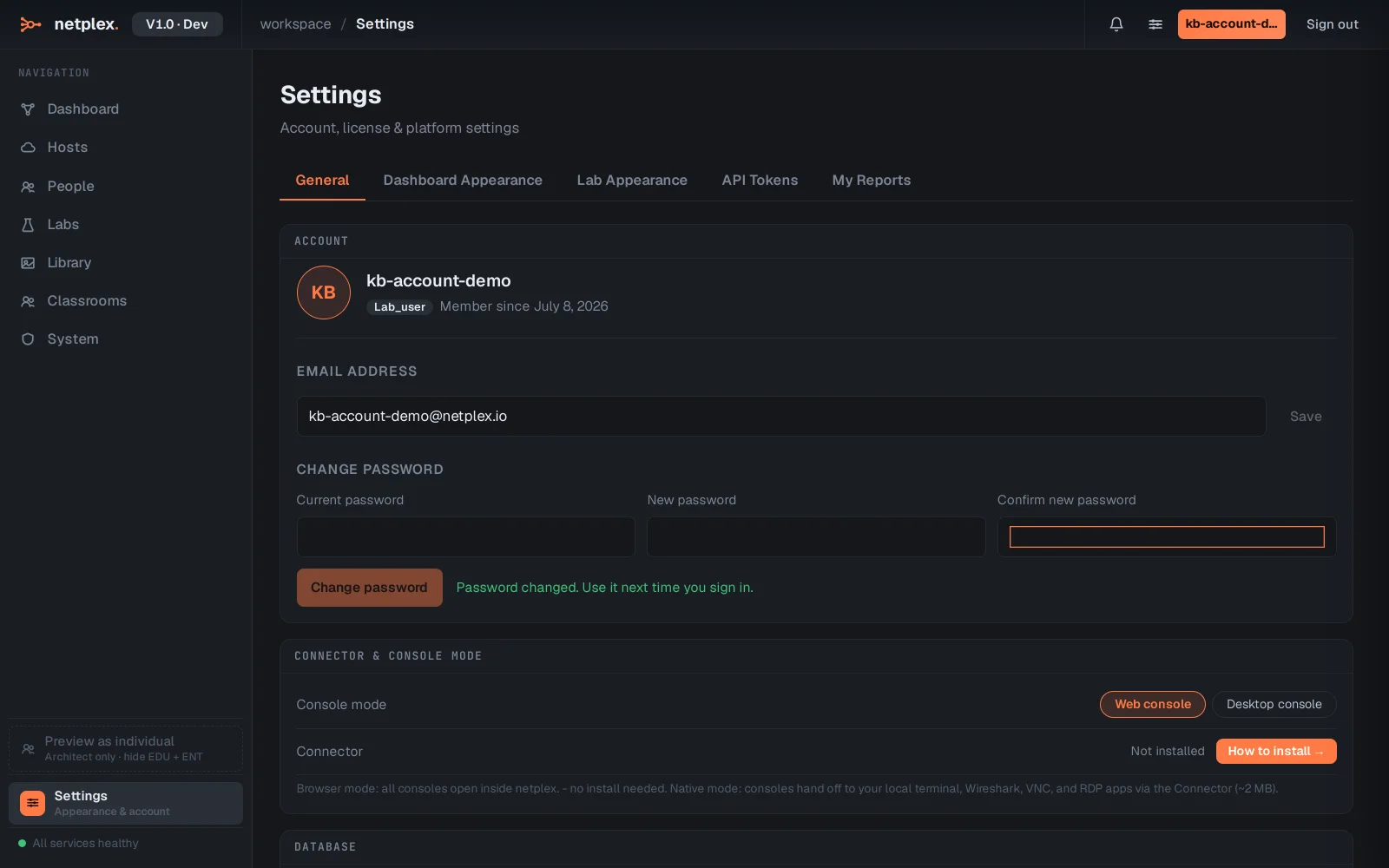
Nothing here needs an admin - every user manages their own email and password from the same place. For organisation-wide user management (creating accounts, roles, disabling access), see "People: teams, roles, image policy and the audit log".